Admin pages overview
Open Shopify admin, then go to Apps > VIBE Search & Discovery.
Start from the task you need to complete. You do not need to understand every page before making progress.
Choose what you need to do
Section titled “Choose what you need to do”
Launch the storefront
Complete initial setup
Confirm the catalog is ready, connect VIBE to the theme, choose the search surfaces, and test a real query.
Catalog health
Fix missing or stale products
Review catalog updates, exclusions, availability behavior, and the data VIBE uses to understand products.
Storefront presentation
Choose surfaces and product cards
Choose quick search, full search, VIBE cards, theme-native cards, translations, styling, and theme installation.
Result control
Guide discovery and ranking
Add shopper controls, expose Shopify filters, choose starting collections, and create result rules.
Diagnosis
Investigate a search query
Reproduce results without normal storefront usage, inspect applied rules, and compare the product data VIBE has.
Evidence
Measure and compare performance
Review search, engagement, sales VIBE helped create, and query data, or compare VIBE with Shopify native search.
A practical operating flow
Section titled “A practical operating flow”1CheckHome shows live status, usage, and the next task.
2ConfigureSync, Appearance, Explore, and Merchandising control the experience.
3TestSearch Preview verifies result behavior before storefront QA.
4MeasureAnalytics and A/B Test show what shoppers do.
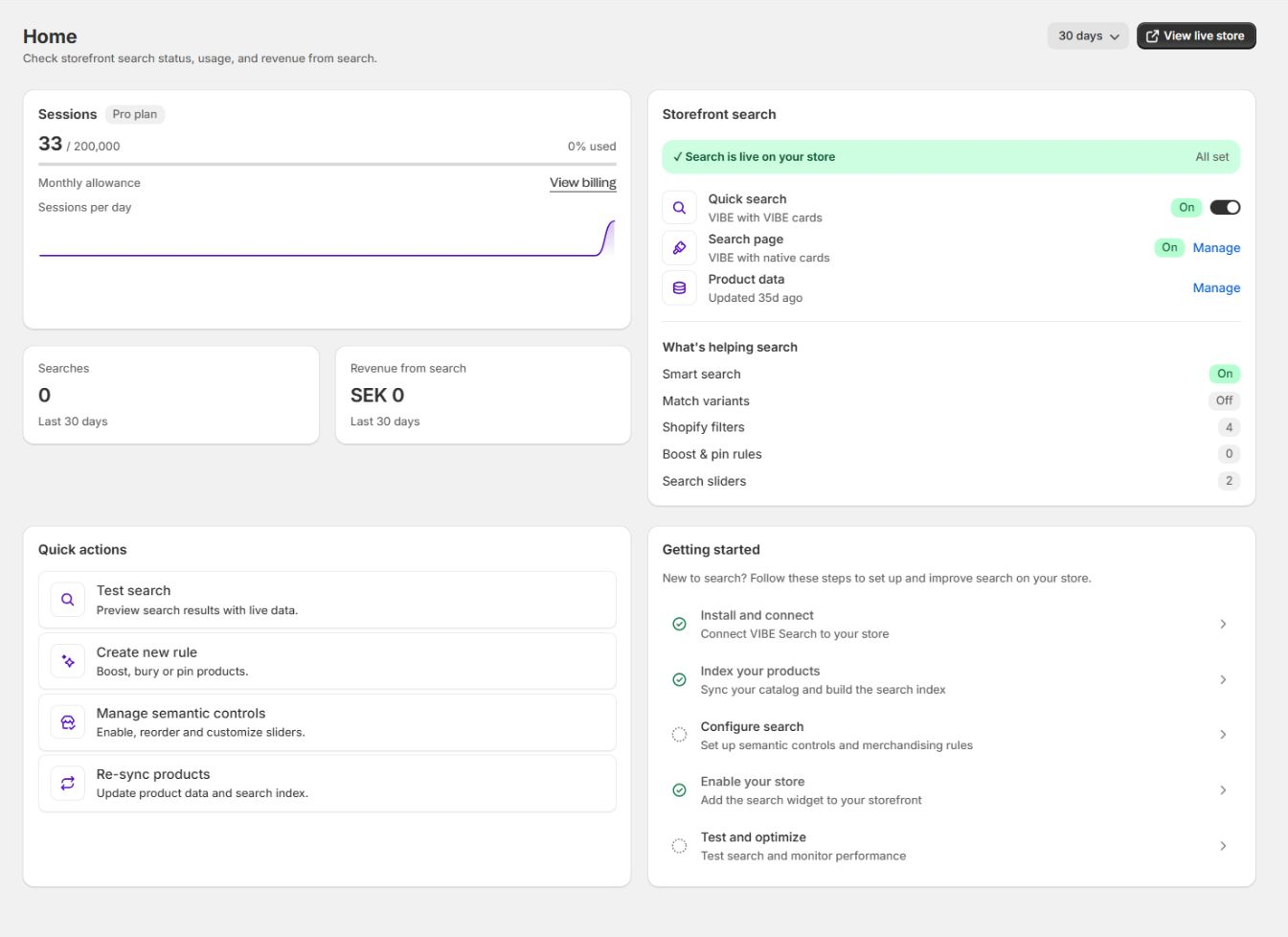
Home is the daily starting point. Use it to identify the next action, then move to the focused admin page for the work itself.
Every admin page at a glance
Section titled “Every admin page at a glance”| Admin page | Open it when | Main outcome | Detailed guide |
|---|---|---|---|
| Home | You need the current operational state or next action | Understand storefront status, whether your catalog is ready, usage, and setup progress | Home, Sync and Index |
| Sync and Index | A product is missing, stale, excluded, or using the wrong searchable data | Control which products VIBE can show and the data available to it | Home, Sync and Index |
| Appearance | Search opens in the wrong interface, cards look wrong, or the theme connection needs attention | Choose the search surfaces, VIBE or theme-native cards, text, styling, and installation | Appearance |
| Explore mode | Shoppers need preference controls, Shopify filters, or starting collections | Shape discovery without requiring a precise search query | Discovery and merchandising |
| Merchandising | A product must be boosted, buried, pinned, redirected, or matched through a synonym | Apply intentional business rules to otherwise relevant results | Discovery and merchandising |
| Search Preview | You need to reproduce a query or Explore state safely | Inspect ranking, active rules, projection data, and the product data VIBE has | Search Preview |
| Analytics | You need evidence about searches, engagement, sales VIBE helped create, or weak queries | Identify what shoppers do and where improvement work is needed | Analytics |
| A/B Test | You need a controlled comparison of VIBE and Shopify native search | Compare variants using the same storefront traffic period | A/B testing |
| Plan and Billing | You need the current plan, usage, limits, or an upgrade | Confirm the store’s live commercial and feature access state | Plan and Billing |
| Help | You need setup, documentation, service status, support, or a call | Find the correct self-service or contact path | Account, billing, and support |
Some controls depend on the active plan. Treat Plan and Billing in VIBE as the authoritative source for the store.
Recommended order for a new store
Section titled “Recommended order for a new store”- Open Home and finish the setup checklist.
- Open Sync and Index and confirm that the expected catalog is searchable.
- Open Appearance and choose quick search, full search, and the correct product-card approach.
- Use Search Preview with known product names, broad categories, and descriptive queries.
- Configure Explore mode and Merchandising only after the base results are understood.
- Test the published storefront on desktop and mobile.
- Return to Analytics after real shopper activity has accumulated.
Read VIBE cards, theme-native cards, and Shopify native search before changing card or search-surface modes. These options control different parts of the experience.
When something is wrong
Section titled “When something is wrong”| Symptom | Start here | Why |
|---|---|---|
| Product missing or outdated | Sync and Index | First confirm whether VIBE can show it and whether its data is current |
| Relevant product ranks poorly | Search Preview | Reproduce the query before adding a rule |
| Search opens in the wrong interface | Appearance | Search-surface mode controls which interface opens |
| Product cards look incomplete or inconsistent | Appearance | Card mode decides whether VIBE or the theme renders product cards |
| Explore controls or filters are missing | Explore mode | This page manages Explore controls, Shopify filters, and starting collections |
| Business rule does not apply | Merchandising, then Search Preview | Check the rule state and then inspect how it affects a real query |
| Reporting looks empty or unexpected | Analytics | Confirm the date range, traffic, tracking, and metric definition |
| Feature is locked | Plan and Billing | Confirm live plan access and limits |
| Setup or service status is unclear | Help | Open setup, system checks, documentation, or support |
Need exact control details?
Open the Admin control reference for what each setting changes, its dependencies, and how to verify it.