Enable VIBE on your theme
VIBE uses a Shopify theme app extension. Enable it through the Theme Editor without editing theme code.
The extension includes a theme switch and an optional search-page block.
What VIBE adds to your theme
Section titled “What VIBE adds to your theme”VIBE’s theme app extension provides two blocks:
| Block | Type | Where it lives | What it does |
|---|---|---|---|
| VIBE Search | Theme switch | Loads on every storefront page (body) | Powers the VIBE search experience and search overlay across your store. This is the block you turn on to switch VIBE on. |
| Search Page | App block (section) | The search template only | Optionally renders the VIBE search results page directly on your store’s /search page. |
Configuration notes:
- Enable VIBE from the admin. The setup wizard opens the correct Theme Editor screen.
- The VIBE switch is opt-in and stays off until you turn it on.
Configure VIBE in the admin. The blocks pull their settings from VIBE automatically and have no Theme Editor settings of their own. Manage appearance, colors, controls, and result layout on the Appearance page.
Online Store 2.0 themes
Section titled “Online Store 2.0 themes”Use the VIBE switch and Search Page block in Theme Editor. VIBE does not add compatibility files to Online Store 2.0 themes. If you choose your theme’s product cards, keep the original native search section available; VIBE reads its rendered cards.
Legacy themes only
Section titled “Legacy themes only”Use the legacy fallback only for a theme that predates Online Store 2.0. Enable the VIBE switch, save, and run Analyze theme on Appearance. VIBE may add card compatibility files only after confirming that the theme is legacy. A Liquid search template by itself does not establish this: a theme may also contain modern JSON templates. If VIBE cannot confirm the theme type, contact support before making manual changes.
Step 1: Turn on the VIBE Search switch
Section titled “Step 1: Turn on the VIBE Search switch”Use the onboarding Enable step:
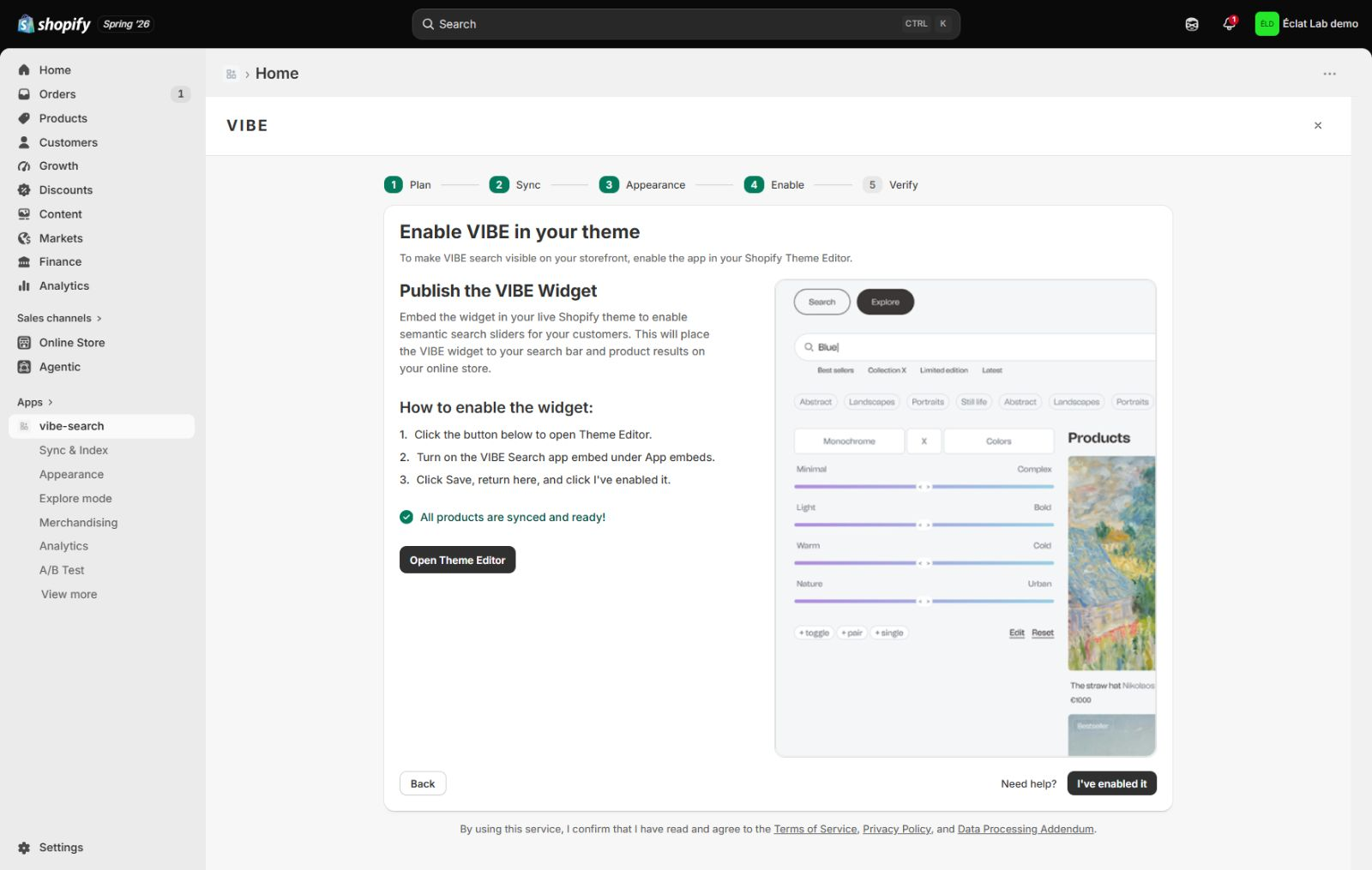
- In the VIBE admin, open the onboarding Enable step. It is titled “Enable VIBE in your theme”.
- Click Open Theme Editor. Shopify opens the selected theme with the VIBE Search switch ready to turn on.
- In the Theme Editor, follow the on-screen onboarding instructions:
- The Open Theme Editor button opens the editor (Step 2 above).
- Select the Search theme section so you can confirm VIBE is in place.
- Click Save.
- Return to the VIBE app and click I’ve enabled it to continue onboarding.
VIBE loads after this switch is on and the theme is saved.
Tip: The onboarding deep link opens whichever theme you selected during onboarding (or your active/published theme if you didn’t choose a specific one). If you want to enable VIBE on a different theme, switch to that theme in the Theme Editor’s theme picker before saving.
Enabling or re-checking later from the Appearance page
Section titled “Enabling or re-checking later from the Appearance page”After onboarding, use the Full Search Setup section on the Appearance page:
- JSON search template (
templates/search.json, most modern Online Store 2.0 themes, including Dawn): the Appearance page shows an Open Search Template button for the optional Search Page block (see Step 2). There is no separate “Enable App Embed” button here, because the VIBE switch is turned on during onboarding (Step 1 above). - Liquid search template (
templates/search.liquid): the Appearance page shows an Enable App Embed button that deep-links into the Theme Editor with the VIBE Search switch ready to turn on. Use it if you ever need to turn the switch back on. - Unknown / undetected template: no button is shown until you re-run the theme check (see Step 2).
To turn the VIBE switch on or off directly, open Online Store → Themes → Customize, open App embeds, and toggle VIBE Search.
Step 2 (optional): Turn on the VIBE Search Page on your search template
Section titled “Step 2 (optional): Turn on the VIBE Search Page on your search template”The VIBE switch handles quick search. The optional Search Page block renders VIBE on the dedicated /search page. The required setup depends on the theme’s search template.
The Full Search Setup section shows the detected template type and required action:
- If your theme uses a JSON search template (
templates/search.json, most modern Online Store 2.0 themes, including Dawn): VIBE will tell you to add the Search Page app block. Click Open Search Template to jump straight to the search template in the Theme Editor, add the Search Page block to the search section, and click Save. Back in VIBE, use Check app block to confirm VIBE detected it. (This check inspects your active/published theme’stemplates/search.json; if your active theme doesn’t have a JSON search template, VIBE will report that instead.) - If your theme uses a Liquid search template (
templates/search.liquid): you generally do not add a separate block. As long as the VIBE Search switch (Step 1) is turned on, VIBE inserts its search page on/searchbefore your theme’s native results and hides the native results automatically. The Appearance page’s Enable App Embed button is provided for this case. - If VIBE can’t determine your search template: the Full Search Setup section will say so and ask you to re-run the theme check (use the Analyze theme button) before enabling search-page replacement.
On Appearance → Search page, How products look selects VIBE product cards or compatible theme product cards. This setting changes the card design, not the search provider.
Step 3: Preview VIBE on your storefront
Section titled “Step 3: Preview VIBE on your storefront”- Make sure the VIBE Search switch is turned on and saved (Step 1).
- Open your live storefront, or use the Theme Editor’s preview while the switch is on.
- Use your store’s search to confirm the VIBE experience appears.
How to check it worked: typing in your storefront’s search bar opens VIBE’s search experience, not the old theme search.
If VIBE doesn’t appear, confirm the VIBE Search switch is turned on for the theme you’re viewing and that you selected Save in the Theme Editor.
If something looks wrong: see Search does not open.
How to disable VIBE
Section titled “How to disable VIBE”Disable VIBE in Shopify’s Theme Editor:
- In Shopify admin, go to Online Store → Themes, then click Customize on the theme you want to change. (Alternatively, on a Liquid-template store you can use the Appearance page’s Enable App Embed deep link to jump into the Theme Editor.)
- Open the App embeds panel.
- Toggle the VIBE Search switch off.
- Click Save.
VIBE no longer loads on your storefront. If you also added the Search Page block (Step 2), open the search template in the Theme Editor and remove that block to fully revert the search page to your theme’s native results.
Turning this switch off does not delete your VIBE settings or your catalog in VIBE. Your configuration is preserved, so you can turn VIBE back on later by toggling the switch on again.
Frequently asked questions
Section titled “Frequently asked questions”Do I have to add the blocks manually? No. The onboarding Enable step opens the Theme Editor with the VIBE switch ready to turn on. Select the Search section and click Save. Add the optional Search Page block from Appearance → Open Search Template.
Why are there no settings on the VIBE block in the Theme Editor? You control VIBE’s appearance and behavior from its Appearance page. The theme blocks only mount VIBE on the store.
Will VIBE turn on by itself after I install it? No. The VIBE switch is opt-in: you turn it on yourself in Step 1.
I’m on Dawn (a JSON-template theme). Where do I turn the VIBE switch on? From the onboarding Enable step (Step 1). On the Appearance page, JSON-template stores see the Open Search Template button for the optional Search Page block, not a separate switch button. To turn the switch itself on or off after onboarding, open the Theme Editor from Shopify admin and use the App embeds panel.
Which themes are supported? VIBE supports Online Store 2.0 through theme app extensions, including Dawn, and provides a separate compatibility fallback for confirmed legacy themes. The Appearance page reports the detected search template and required setup.
For help enabling VIBE, email vibe@coiagency.com with your store domain and theme name.