Appearance
The Appearance page has five tabs: Quick search, Search page, Translations, Style, and Installation. The status badge shows Ready or Needs setup.
Quick search
Section titled “Quick search”Quick search shows results and suggestions while a shopper types.
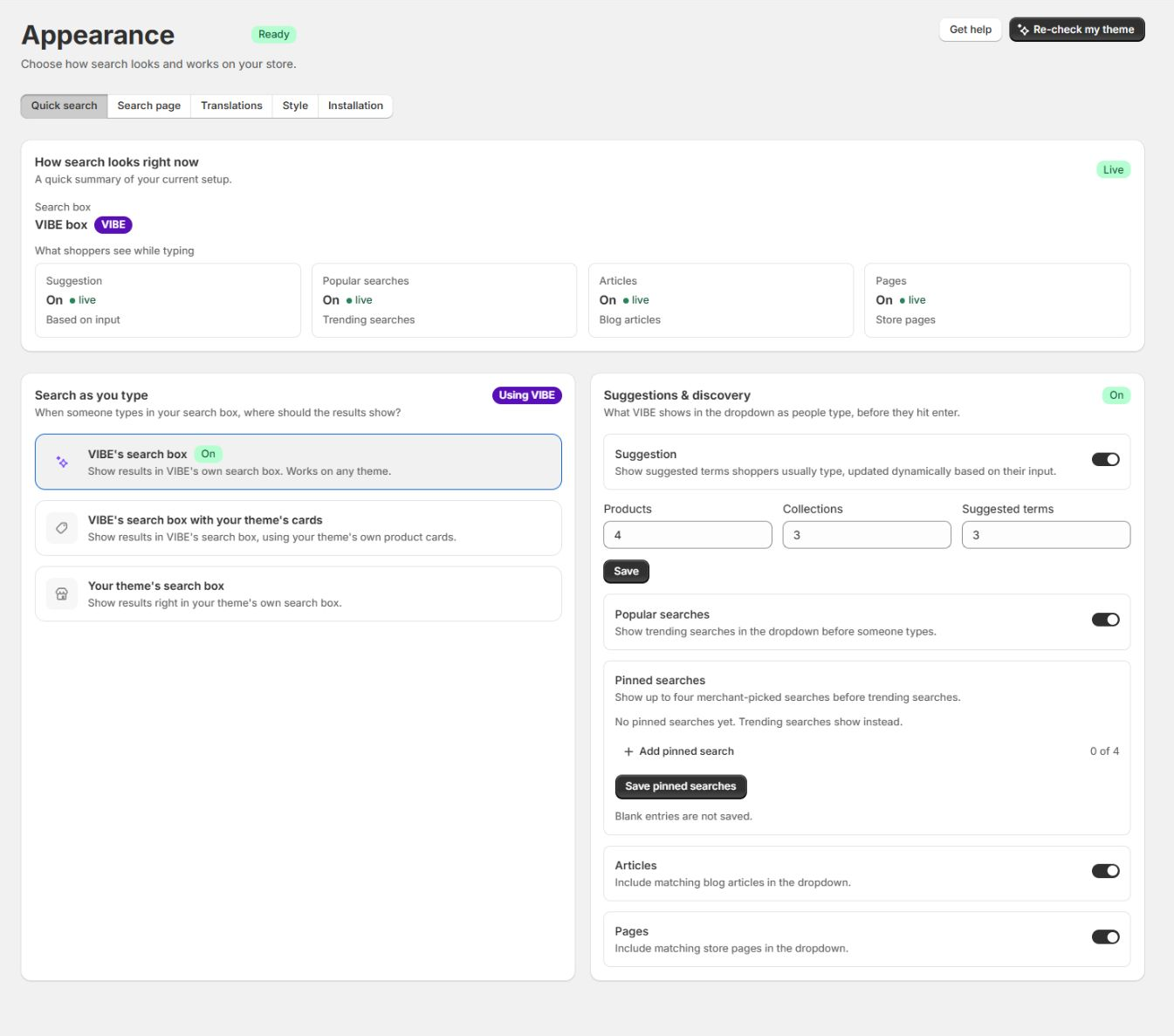
Search as you type decides where results appear when a shopper types:
- VIBE’s search box shows results and VIBE product cards in VIBE’s own overlay. It works on any theme.
- VIBE’s search box with your theme’s cards keeps VIBE’s overlay but renders product cards using your theme’s design.
- Your theme’s search box renders results inside the theme’s existing search surface.
Suggestions and discovery controls what VIBE shows before a shopper hits Enter:
- Turn suggested terms, popular searches, matching articles, and store pages on or off.
- Set the number of products, collections, and suggested terms returned.
- Add, remove, or reorder up to four Pinned searches. Blank entries are not saved.
See Product cards and search surfaces before choosing a theme-card or theme-search option. It explains the three combinations, which settings own each layer, and what VIBE does when a theme card cannot be shown.
The How search looks right now card summarizes the active search box, product-card style, and the discovery content shoppers can see.
When you use your theme’s search box, the theme controls how its predictive-search surface is presented.
Search page
Section titled “Search page”This tab controls the dedicated search results page (your store’s /search page).
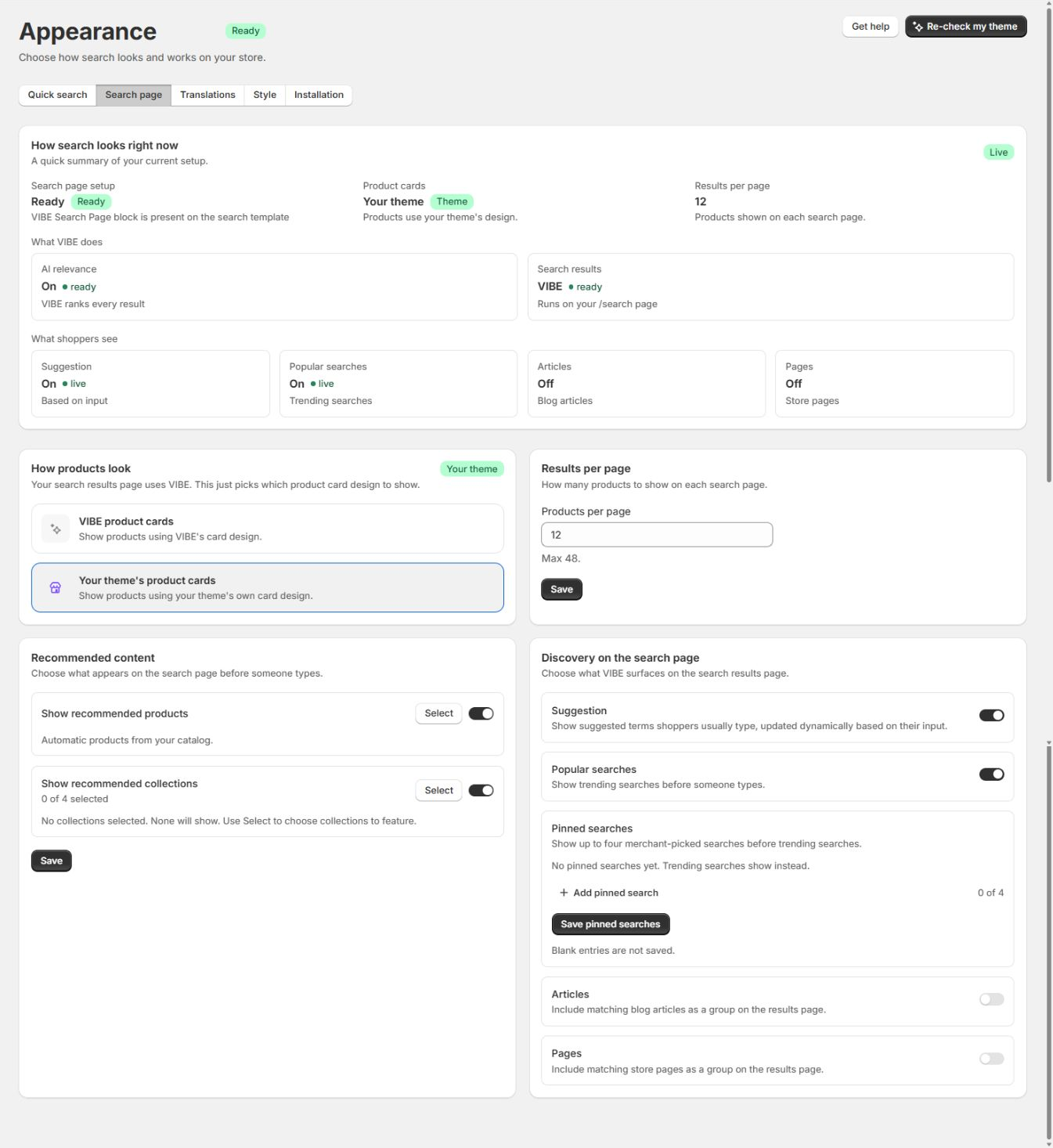
- Search page setup shows whether the VIBE Search Page app block is present on the search template. If it is missing, follow the action shown in the tab.
- Results per page sets how many products appear on each page, up to 48.
- Recommended content controls the products and up to four collections shown before a shopper searches.
- Discovery on the search page controls suggested terms, popular and pinned searches, articles, and pages. You can add and reorder up to four pinned searches here too.
Catalog visibility, out-of-stock handling, collection and variant search, image matching, and Google Tag Manager now live on the Configuration tab of Sync and Index.
Choose how products look
Section titled “Choose how products look”- Open Appearance > Search page > How products look.
- Choose one of two card types:
- VIBE product cards: VIBE controls the image, title, price, actions, spacing, and grid. Style settings below apply to these cards.
- Your theme’s product cards: use theme cards once the Installation tab confirms they are ready. Products keep looking like the rest of your storefront.
- Select Save.
How to check it worked: open your storefront’s full search page. The product cards should match the type you chose.
If something looks wrong: see Products are correct, but cards look wrong.
Translations
Section titled “Translations”Use this tab to change the words shoppers see in search, for each published language.
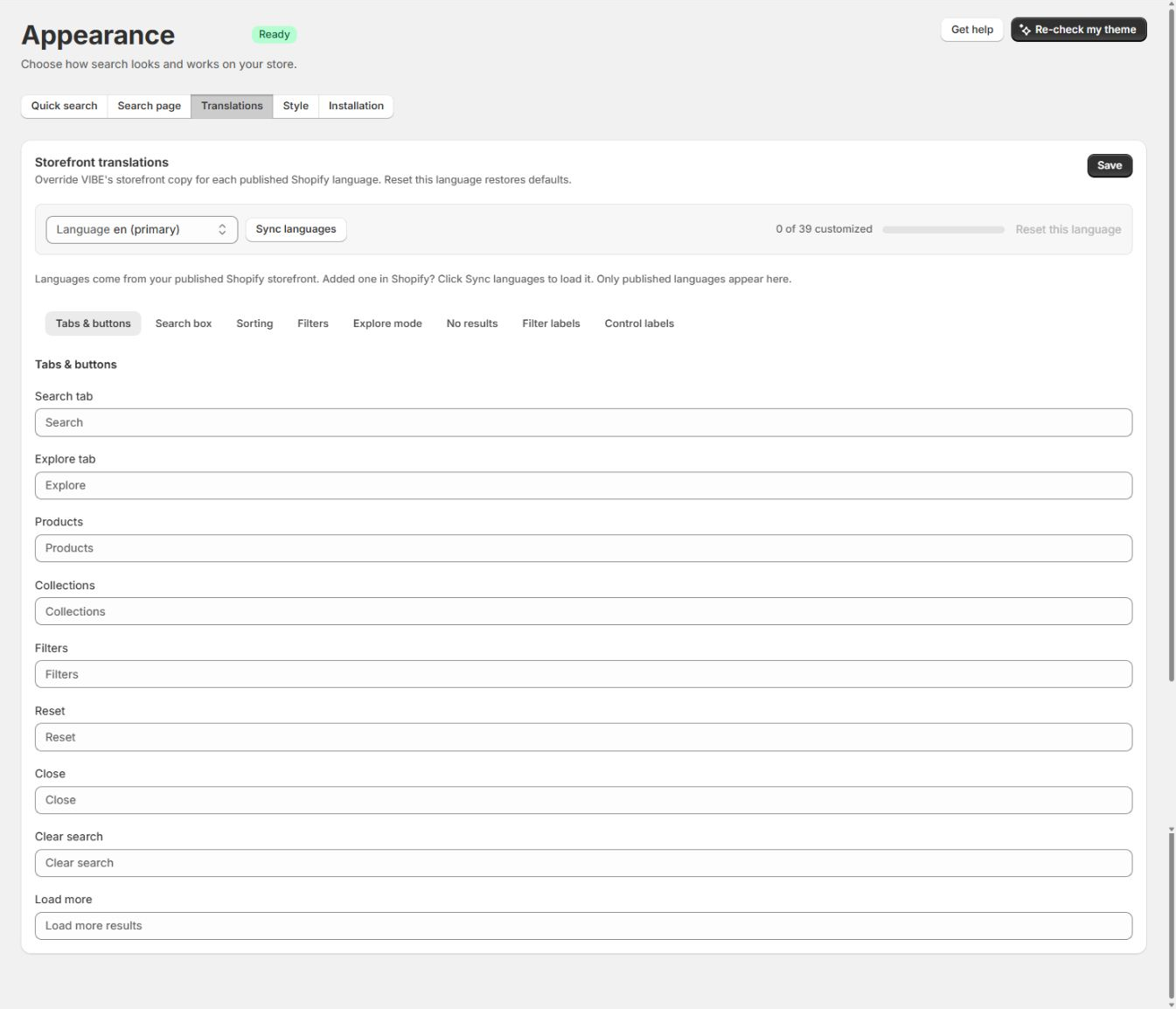
- Open Appearance > Translations.
- Pick a Language at the top. Languages come from your published Shopify storefront. If you added one in Shopify, select Sync languages to load it; only published languages appear here.
- Find the string you want to change. Strings are grouped into sets such as Tabs and buttons, Sorting, Filters, Explore mode, No results, Filter labels, and Control labels.
- Edit the text. This replaces VIBE’s default wording for that language only.
- Select Save.
Select Reset this language to restore the defaults for that language.
How to check it worked: open your storefront in the language you edited. The words you changed should appear in place of VIBE’s defaults.
The counter shows how many strings you have customized (for example, 0 of 39).
If something looks wrong: see Translations are missing.
The Style tab sets the look of VIBE’s own rendered search, the quick-search overlay, and the full search page. These settings apply to VIBE-rendered results, not to your theme’s own cards.
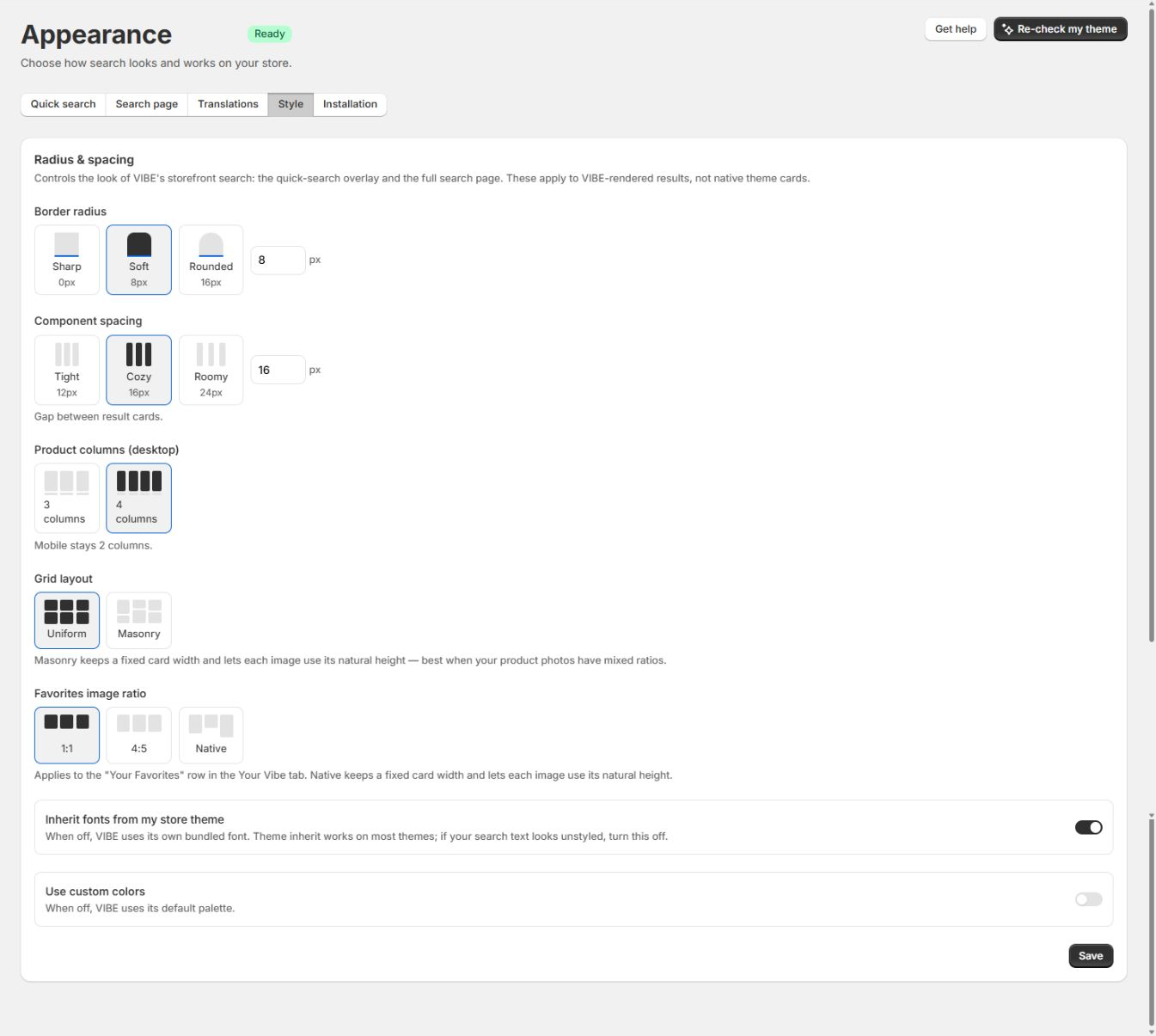
- Open Appearance > Style.
- Set Border radius: how rounded the corners are. Sharp (0px), Soft (8px), or Rounded (16px).
- Set Component spacing: the gap between result cards. Tight (12px), Cozy (16px), or Roomy (24px).
- Set Product columns (desktop): 3 or 4 columns. Mobile always stays at 2.
- Set Grid layout: a uniform grid, or a masonry layout for mixed image ratios.
- Set Card image fit: Cover crops images to fill the card (the default); Contain shows the full image and may leave empty space. Masonry cards keep their natural image height.
- Set Favorites image ratio: 1:1, 4:5, or each image’s own ratio, for the Your Favorites row.
- Set Inherit fonts from my store theme: on uses your theme’s fonts, off uses VIBE’s bundled font. If search text looks unstyled, turn this off.
- Set Use custom colors: on applies the palette you choose, off uses VIBE’s default palette.
- Select Save.
How to check it worked: open your storefront and run a search. The result cards should show the radius, spacing, columns, and colors you chose.
If something looks wrong: see The full search page shows the old results if styling does not apply, or confirm you are viewing VIBE product cards rather than your theme’s own cards.
Installation
Section titled “Installation”The Installation tab connects VIBE to your theme and shows what is set up and what still needs action.
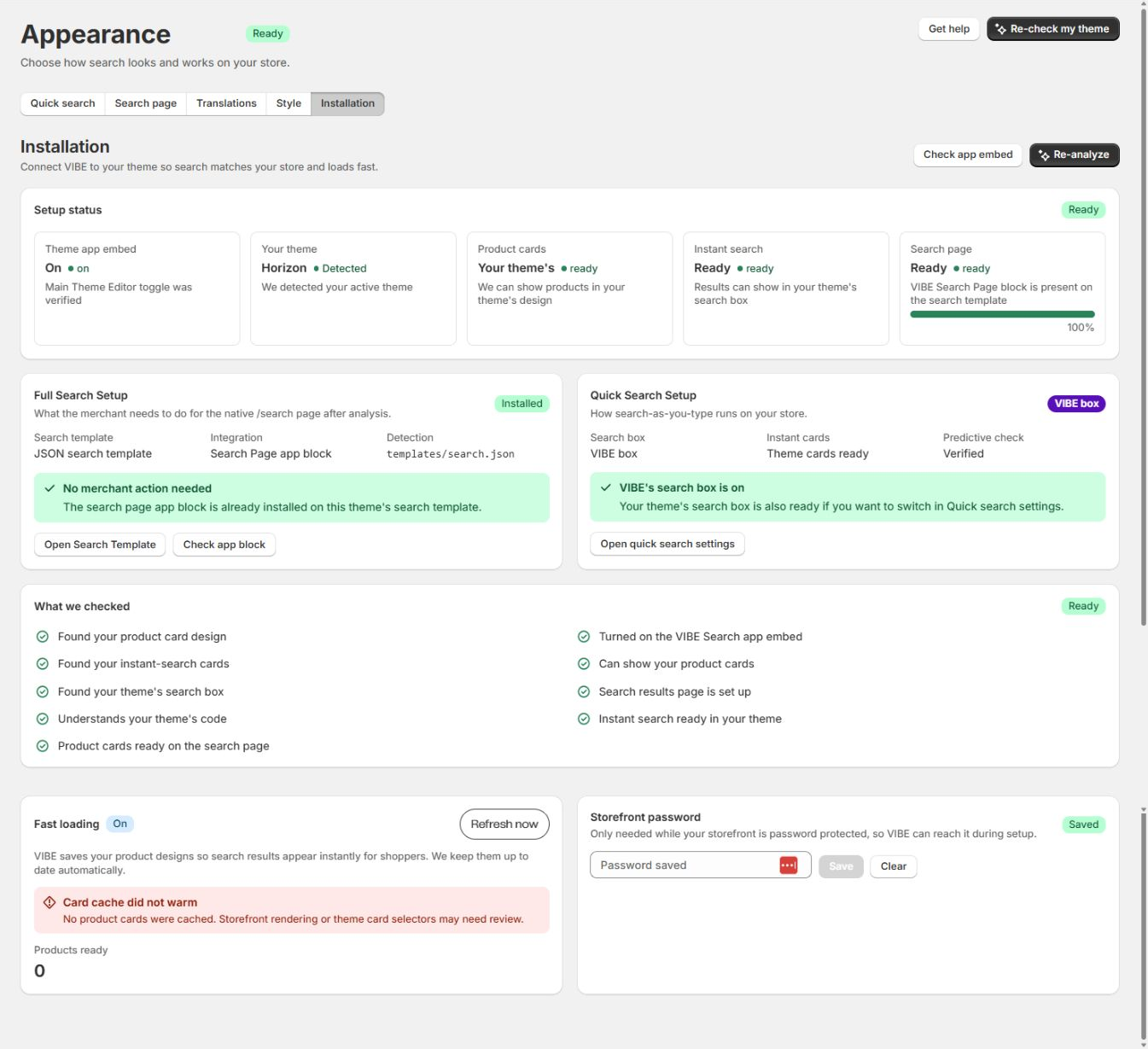
VIBE checks your active theme and reports a Setup status checklist:
- Theme app embed shows whether the VIBE switch is turned on in your live theme.
- Your theme shows the detected active theme.
- Product cards confirms VIBE can show products in your theme’s design.
- Instant search confirms results can show in your theme’s search box.
- Search page shows whether the VIBE Search Page block is present.
The lower sections show what VIBE checked, whether product cards are cached for fast loading, and the storefront password used only for password-protected stores.
If you change your theme, select Re-check my theme to run the checks again.
How to check it worked: the checklist items you fixed show ready, and searching on your storefront behaves the way you configured it.
If something looks wrong: see Search does not open.
A Full Search Setup section explains the search-template setup. Quick Search Setup shows the active search box and whether your theme’s predictive search is ready.
Recipe: pin searches before trending terms
Section titled “Recipe: pin searches before trending terms”- Open Quick search or Search page.
- In Pinned searches, select Add pinned search.
- Enter the phrase shoppers should see, add up to four entries, and drag them into order.
- Select Save pinned searches.
How to check it worked: your pinned phrases appear before automatically generated trending terms on your storefront. Blank entries are ignored.
If something looks wrong
Section titled “If something looks wrong”- Shoppers click search and the old theme search opens: VIBE only takes over once the VIBE switch is turned on in your published theme. Open the Installation tab, turn on the switch in the Theme Editor, save, then hard refresh your storefront. If you use your theme’s own search box, also confirm the mode setting on the Quick search tab. See Search does not open.
- Which themes are supported: any Online Store 2.0 theme, such as Dawn, since VIBE uses the same switch and blocks those themes already support. Quick search works on these themes once the VIBE switch is on. The dedicated search results page also needs the VIBE Search Page block added to your search template.
- Storefront search text shows in the wrong language: see Translations are missing. Also confirm multilingual search is included in your plan.