Appearance controls
Use this guide when the result data is correct but the storefront search surface, product cards, wording, visual style, or installation is wrong.
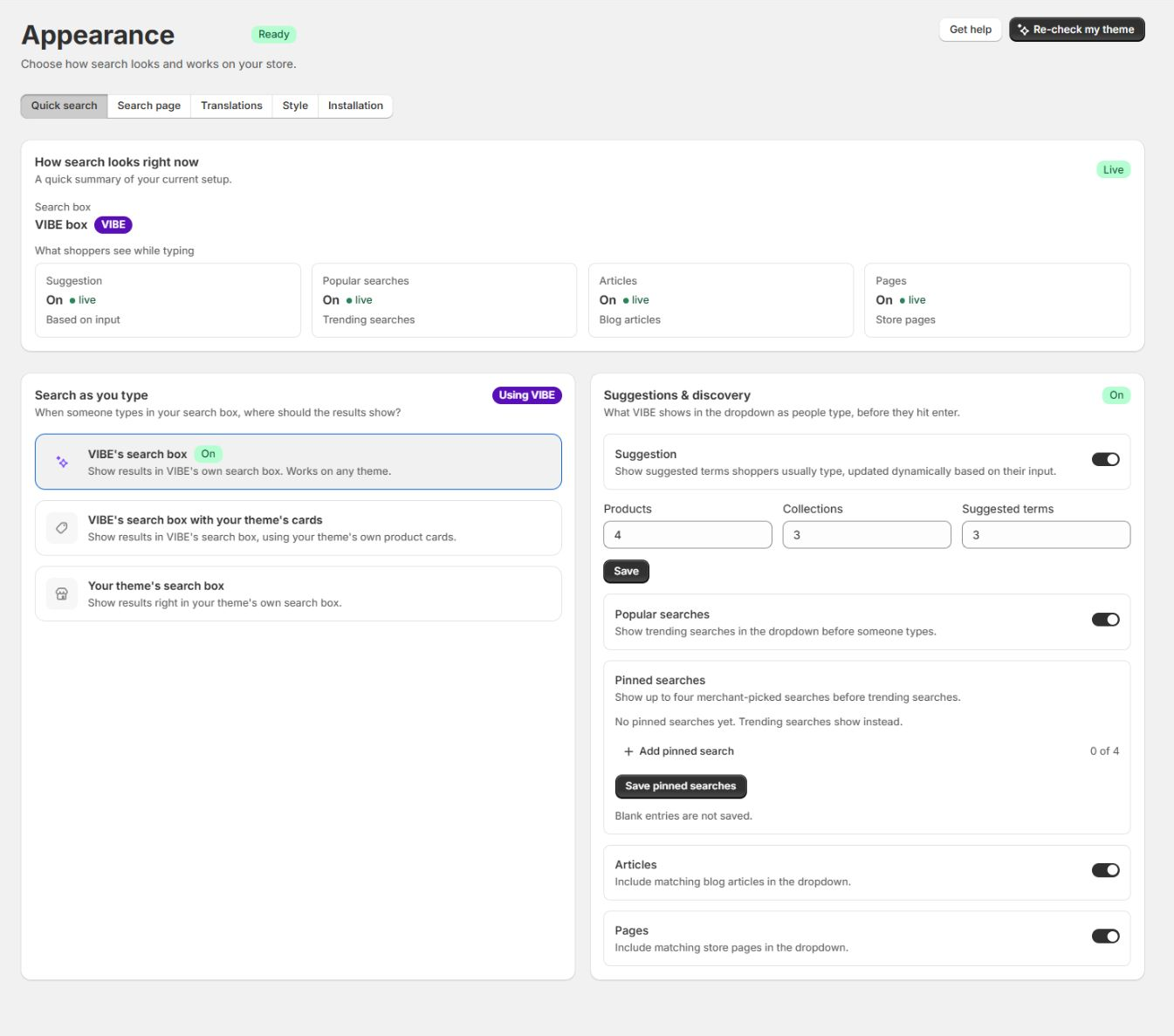
Quick search
Section titled “Quick search”Search-box mode
Section titled “Search-box mode”| Mode | Search container | Product cards | Why choose it |
|---|---|---|---|
| VIBE’s search box | VIBE overlay | VIBE cards | Most portable option across Online Store 2.0 themes |
| VIBE’s search box with theme cards | VIBE overlay | Theme cards | Complete VIBE behavior with closer storefront continuity |
| Your theme’s search box | Theme predictive-search surface | Theme presentation | Preserves the theme’s existing search interaction |
Theme options require verified theme analysis. VIBE’s search box with VIBE cards remains the safe fallback.
Read Product cards and search surfaces before selecting a hybrid or theme-owned mode.
Suggestions and discovery
Section titled “Suggestions and discovery”- Suggested terms controls query suggestions.
- Products sets the maximum quick product results.
- Collections sets the maximum quick collection results.
- Suggested terms limit controls the number of query suggestions.
- Popular searches shows trending terms before typing.
- Pinned searches adds up to four merchant-selected terms before generated popular terms.
- Articles includes matching blog content.
- Pages includes matching store pages.
When the theme’s own search box is active, the theme controls presentation and some VIBE overlay settings do not apply.
Search page
Section titled “Search page”Product cards
Section titled “Product cards”- VIBE product cards use VIBE components and respond to Appearance > Style.
- Theme product cards reuse the verified theme design and ignore VIBE-only card styling.
Changing this option changes card presentation inside the VIBE Search Page block. It does not change result ranking or restore the theme’s original search-results section.
Results per page
Section titled “Results per page”Sets the product batch size up to the maximum shown in VIBE. A larger value reduces pagination actions but increases the initial rendered content.
Recommended content
Section titled “Recommended content”Before the shopper enters a query, the page can show:
- Merchant-selected products.
- Up to four starting collections.
- Suggested terms.
- Popular and pinned searches.
- Matching article and page groups.
Use it as a discovery starting point, not as a replacement for the storefront home page.
Search Page app block
Section titled “Search Page app block”The full VIBE page needs the VIBE Search Page app block on the theme’s search template. Turning on only the VIBE switch in your theme does not install the full results page.
Read Full search results page.
Translations
Section titled “Translations”Translations come from published Shopify storefront languages.
You can override VIBE strings for:
- Tabs, buttons, placeholder, clear, and close actions.
- Sorting and filtering.
- Explore controls and loading states.
- Product, collection, article, and page groups.
- No-results messages.
- Your Vibe, favorites, tour, and visual actions.
Use Sync languages after publishing a Shopify language. Reset this language removes only the selected language’s overrides.
After saving, test the same storefront language and market. A correct override can appear absent when the browser is using another locale.
These settings affect VIBE-rendered surfaces, not the internals of native theme cards.
| Setting | Range or choices | Effect |
|---|---|---|
| Border radius | 0 to 32 px; Sharp, Soft, Rounded | Rounding on VIBE components |
| Component spacing | 0 to 48 px; Tight, Cozy, Roomy | Gaps between result cards |
| Product columns | 3 or 4 desktop columns | Desktop density; mobile stays at two columns |
| Grid layout | Uniform or Masonry | Equal geometry or mixed natural image heights |
| Card image fit | Cover or Contain | Cover crops to fill the card; Contain shows the full image with possible empty space. Masonry cards keep natural image heights. |
| Favorites image ratio | 1:1, 4:5, or Native | Cropping in the favorites row |
| Inherit fonts | Theme or VIBE font | Typography source |
| Custom colors | Default or custom palette | Accent, backgrounds, text, borders, muted, placeholders |
Test custom colors against every surface state, including text, focus, buttons, muted labels, borders, placeholders, and empty states.
Installation
Section titled “Installation”Check the VIBE switch in your theme
Section titled “Check the VIBE switch in your theme”Verifies whether the VIBE Search switch is turned on for the selected theme. If it is off, configuration can be complete while shoppers still see the original search.
- The admin calls this control the VIBE Search app embed. Support may ask whether “the app embed” is enabled.
- “The VIBE code on your store” is what the admin calls the “storefront runtime.”
- “Result rules” are the admin’s “merchandising rules.”
Check or re-check my theme
Section titled “Check or re-check my theme”Runs analysis for:
- Active theme identity.
- Header and predictive-search surface.
- Quick and main product-card rendering.
- Search-page integration.
- Fast-loading card preparation.
Run it again after publishing another theme or changing structural search or card markup.
Setup status
Section titled “Setup status”| Check | What Ready means |
|---|---|
| VIBE switch in your theme | The VIBE code on your store is enabled and saved |
| Your theme | The expected theme was detected |
| Product cards | The selected theme-card mode has a verified rendering path |
| Instant search | The selected quick-search mode can open and render |
| Search page | The full-page integration is installed and detected |
Fast loading
Section titled “Fast loading”VIBE prepares product-card output when the selected theme mode supports it. Refresh now requests another preparation pass.
Use it after a relevant card-markup change. It does not repair relevance.
Storefront password
Section titled “Storefront password”Save the storefront password only while a protected store must be analyzed. Clear it after password protection is removed.
Read Enable VIBE on your theme.
Verification checklist
Section titled “Verification checklist”- Confirm Appearance identifies the published theme.
- Confirm the VIBE switch in your theme and Search Page block are ready where required.
- Test quick search and
/searchseparately. - Test VIBE and theme card modes separately when both are used.
- Verify recommendations, suggestions, filters, sorting, and load more.
- Switch storefront language and market when translations differ.
- Test desktop and mobile, including card actions and focus states.
Next: configure guided discovery, Shopify filters, and result rules.
Discovery and merchandising