Getting started with VIBE
VIBE adds meaning-based and keyword search to your storefront.
After you install VIBE, complete these six setup screens:
- Welcome: an unnumbered intro screen with one choice for you to make.
- Plan: start your free trial and pick a plan.
- Sync: get your catalog into VIBE so search is ready.
- Appearance: choose how quick search looks on your storefront.
- Enable: turn on the VIBE switch in your theme.
- Verify: confirm the switch is on and finish setup.
Step numbers: Welcome is unnumbered. The progress bar starts on Plan and shows five steps: 1 Plan, 2 Sync, 3 Appearance, 4 Enable, and 5 Verify.
You can move forward and back during setup.
Requirement: Use an Online Store 2.0 theme, such as Dawn, that lets you turn VIBE on from the Theme Editor.
Step 1: Welcome
Section titled “Step 1: Welcome”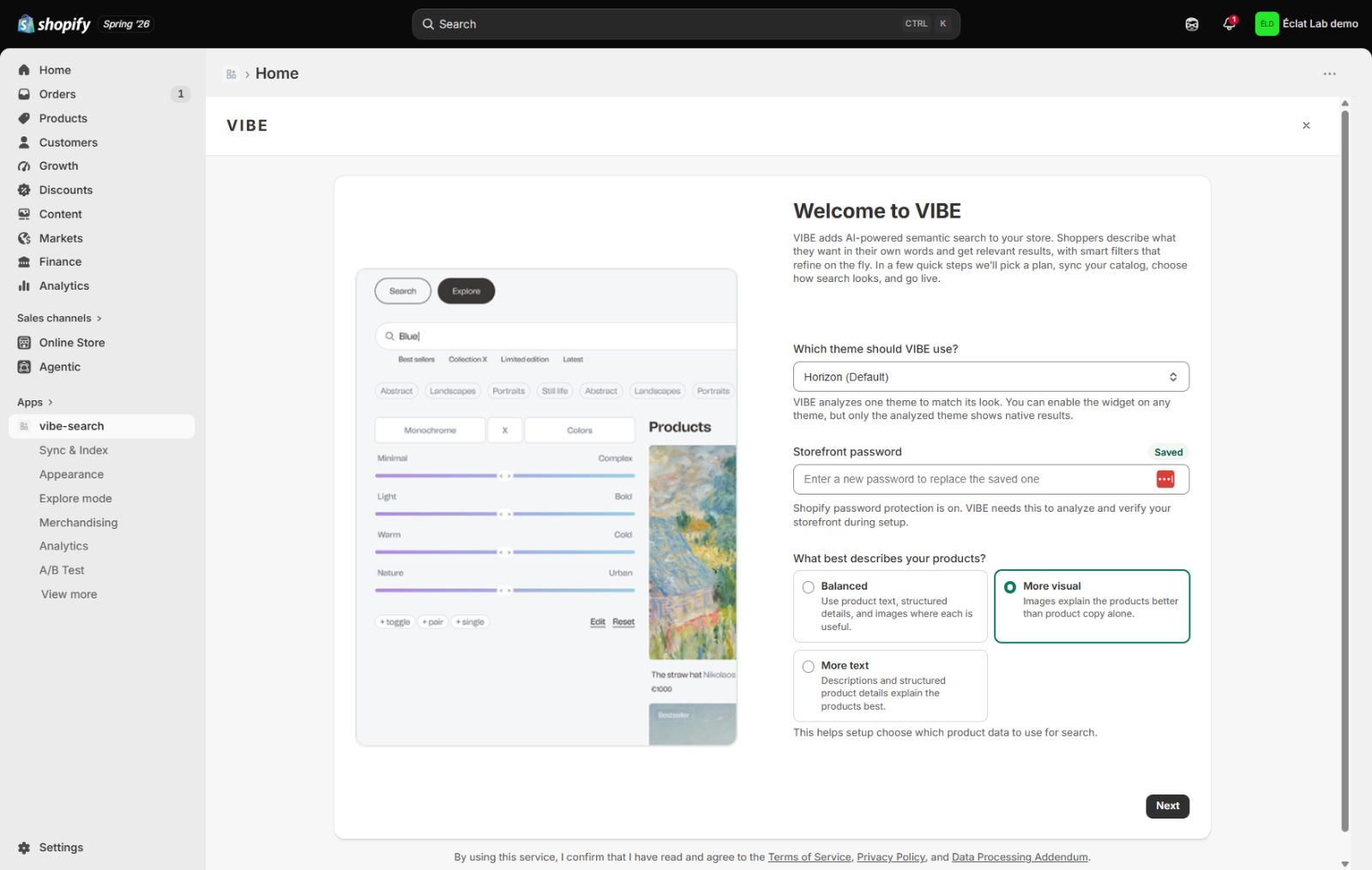
Pick the theme you want VIBE to work with, and tell VIBE how shoppers recognize your products.
- Choose your theme.
- If your store is password protected, enter the password. VIBE needs it to look at your theme.
- Choose how shoppers recognize your products:
- Balanced when your photos and your writing both matter.
- More visual when color, shape, and style matter most.
- More text when your titles and descriptions matter most.
- Select Next.
How to check it worked: the next screen loads and shows your plan options.
VIBE inspects the theme you pick to find your existing search box and to learn the markup of your product cards. You can turn VIBE on for a different theme later, but product cards that match your store’s design only work on the theme VIBE inspected. Re-run the check from Appearance after publishing a new theme.
Step 2: Plan
Section titled “Step 2: Plan”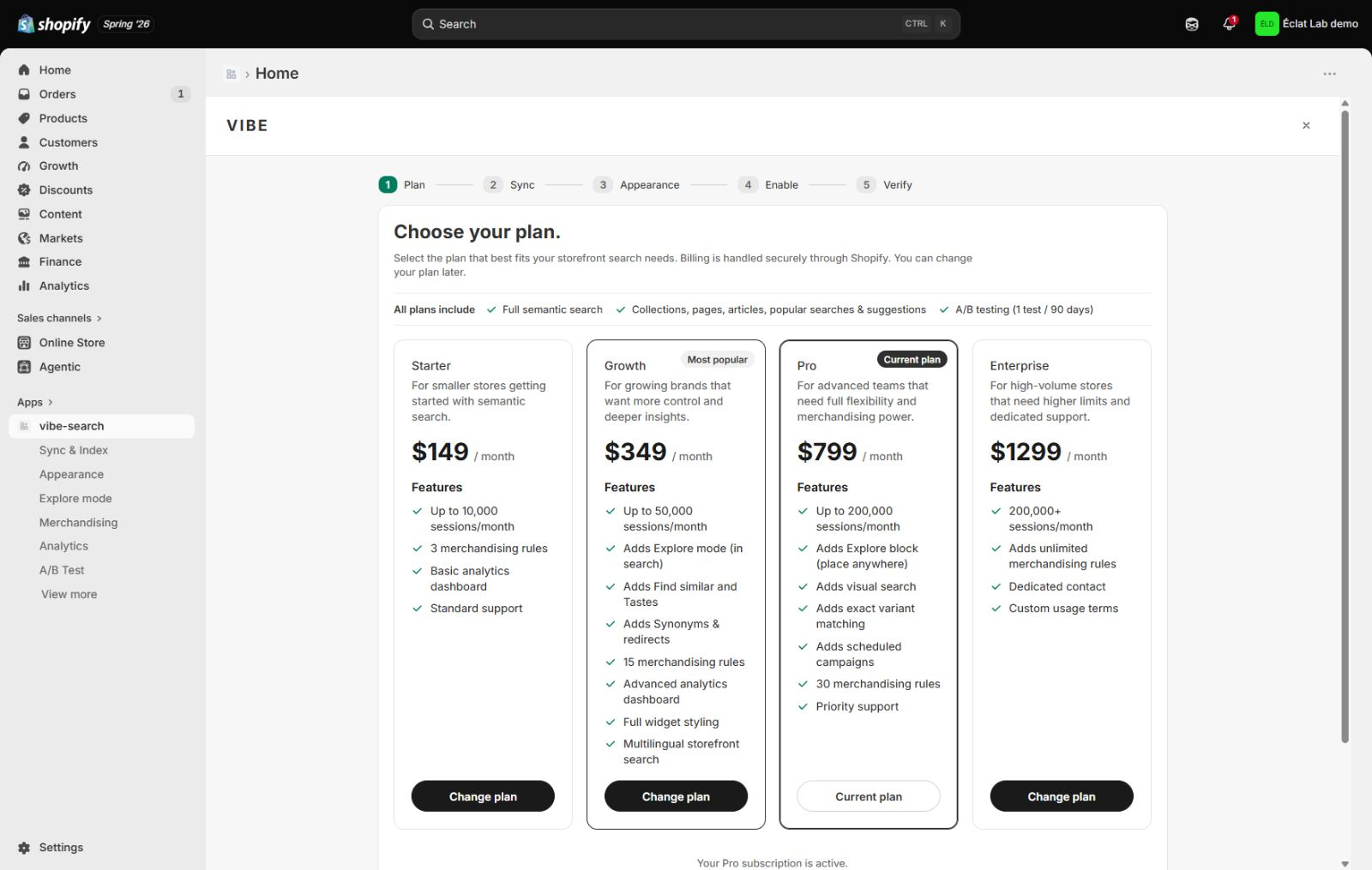
Every plan includes a monthly number of shopper visits. The VIBE admin calls each one a session.
- Compare the four plans and what each one includes.
- Select Start free trial on the plan you want.
- Approve the subscription Shopify shows you.
Shopify opens its subscription approval screen. Charges begin after the trial. You can change the plan later from Plan and billing.
How to check it worked: the Sync screen opens, and your subscription shows as active under Plan and billing.
Development-store testing uses Shopify test subscriptions when VIBE is configured for test billing. If approval fails, follow the message on the billing screen or contact support.
Plan summary:
| Capability | Starter | Growth | Pro | Enterprise |
|---|---|---|---|---|
| Monthly price | $149 | $349 | $799 | $1,299 |
| Included monthly shopper visits | 25,000 | 100,000 | 400,000 | 1,500,000 |
| Overage | $5 per 1,000 | $5 per 1,000 | $5 per 1,000 | No usage overage |
| Usage cap per billing cycle | $50 | $150 | $300 | None |
| Free trial | 7 days | 7 days | 7 days | 7 days |
| Meaning-based search and autocomplete | Yes | Yes | Yes | Yes |
| Explore mode | No | In search | Search + standalone block | Search + standalone block |
| Find similar and Tastes | No | Yes | Yes | Yes |
| Visual search and exact variant matching | No | No | Yes | Yes |
| Result rules | 3 | 15 | 30 | Unlimited |
| Synonyms and redirects | No | Yes | Yes | Yes |
| Analytics | Basic | Advanced | Advanced | Advanced |
| Multilingual storefront search | No | Yes | Yes | Yes |
| Support | Standard | Standard | Priority | Dedicated contact |
The VIBE admin and the widget’s bundled interface text are currently in English. Stores using multilingual search need matching widget translations for each additional storefront locale.
Step 3: Get your catalog ready
Section titled “Step 3: Get your catalog ready”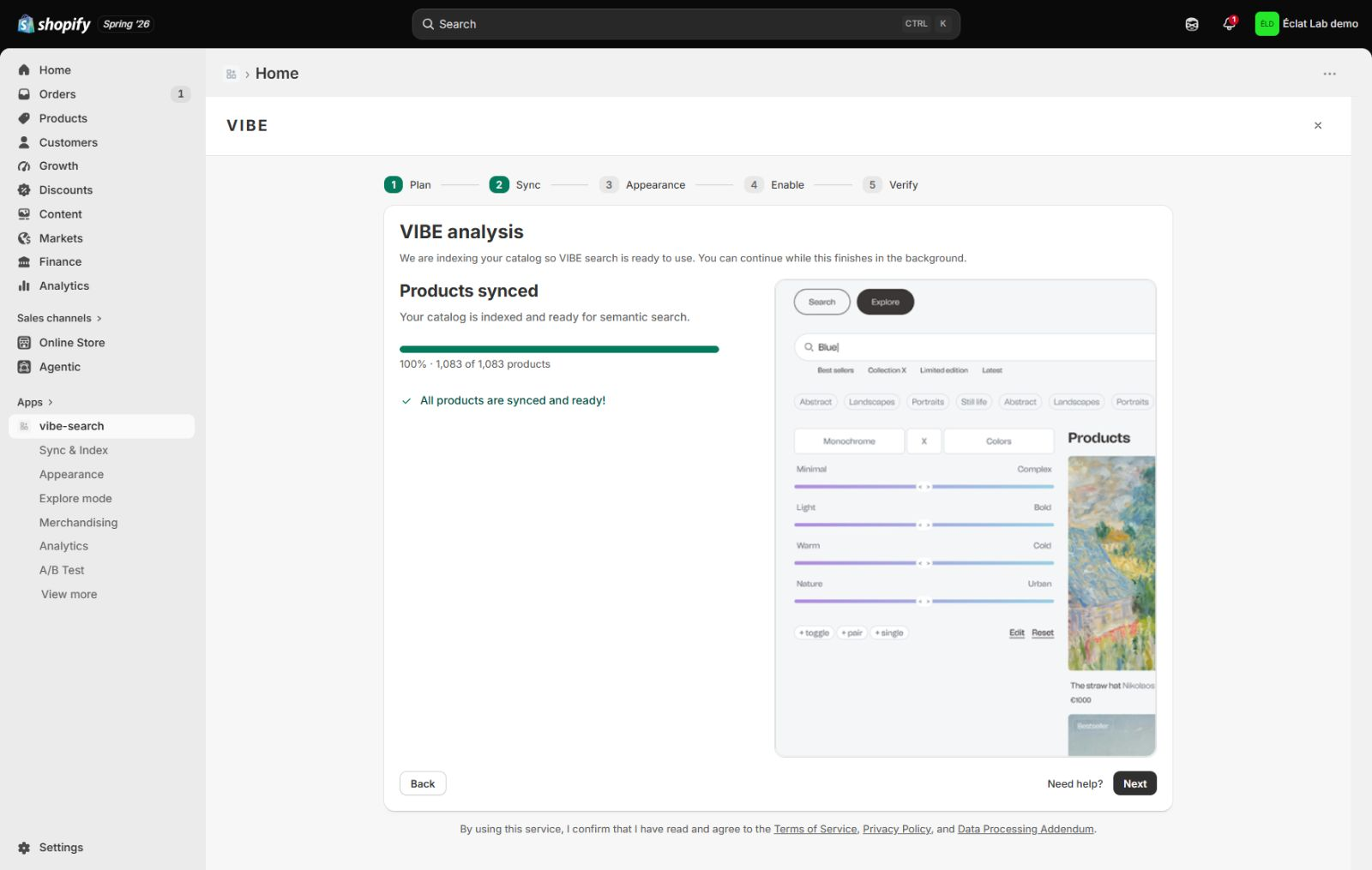
VIBE first looks at your catalog to learn how to read your products, then starts adding your whole catalog to its own copy automatically.
- Wait while VIBE looks at your catalog. The screen shows what it is reviewing.
- If the review cannot finish, VIBE uses a default setting. You can ask VIBE to look at your catalog again later from Sync and Index.
- Watch the progress bar for the percentage and number of products added.
- Select Next once it becomes available. Adding your catalog can continue in the background after you leave this screen.
After VIBE adds your catalog the first time, it keeps its copy current whenever you change a product in Shopify.
How to check it worked: the product count on screen matches, or is close to, your total catalog, and the Next button becomes available.
VIBE first reviews your catalog to choose how it should read your products (internally, this is called a search profile). If that review cannot finish, setup falls back to a default and you can re-run it later from Sync and Index. The Next button unlocks once the review, or the catalog update, is no longer blocking setup.
Step 4: Appearance
Section titled “Step 4: Appearance”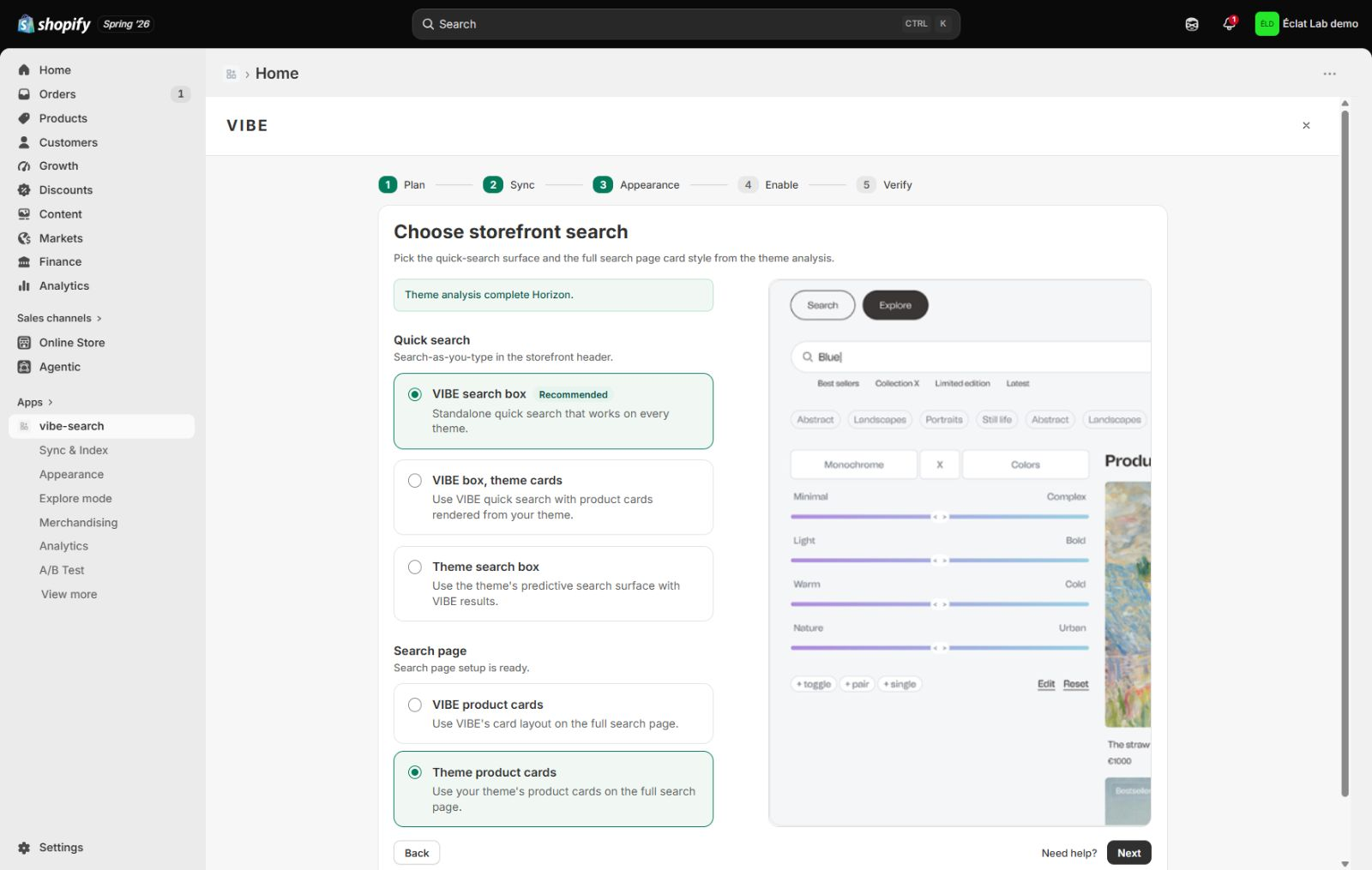
- Choose a quick-search mode:
- VIBE’s search box: uses VIBE’s complete quick-search interface and product cards.
- VIBE’s search box with theme cards: keeps VIBE’s quick-search experience but renders products with your theme’s cards.
- Theme’s search box: keeps your theme’s predictive-search surface and connects it to VIBE results.
- Choose a card style for the full search page: either VIBE cards or theme cards.
Every mode uses VIBE search behind the scenes. Theme-based options only appear when VIBE found a matching search box or product card while checking your theme in Welcome. You can change these settings later under Appearance.
How to check it worked: your choices are saved, and the Enable screen opens next.
VIBE only offers a theme-based search box or theme product cards when it found a compatible one during the theme check in Welcome. If those options are missing, VIBE’s own search box and cards still work as a reliable fallback.
Step 5: Enable
Section titled “Step 5: Enable”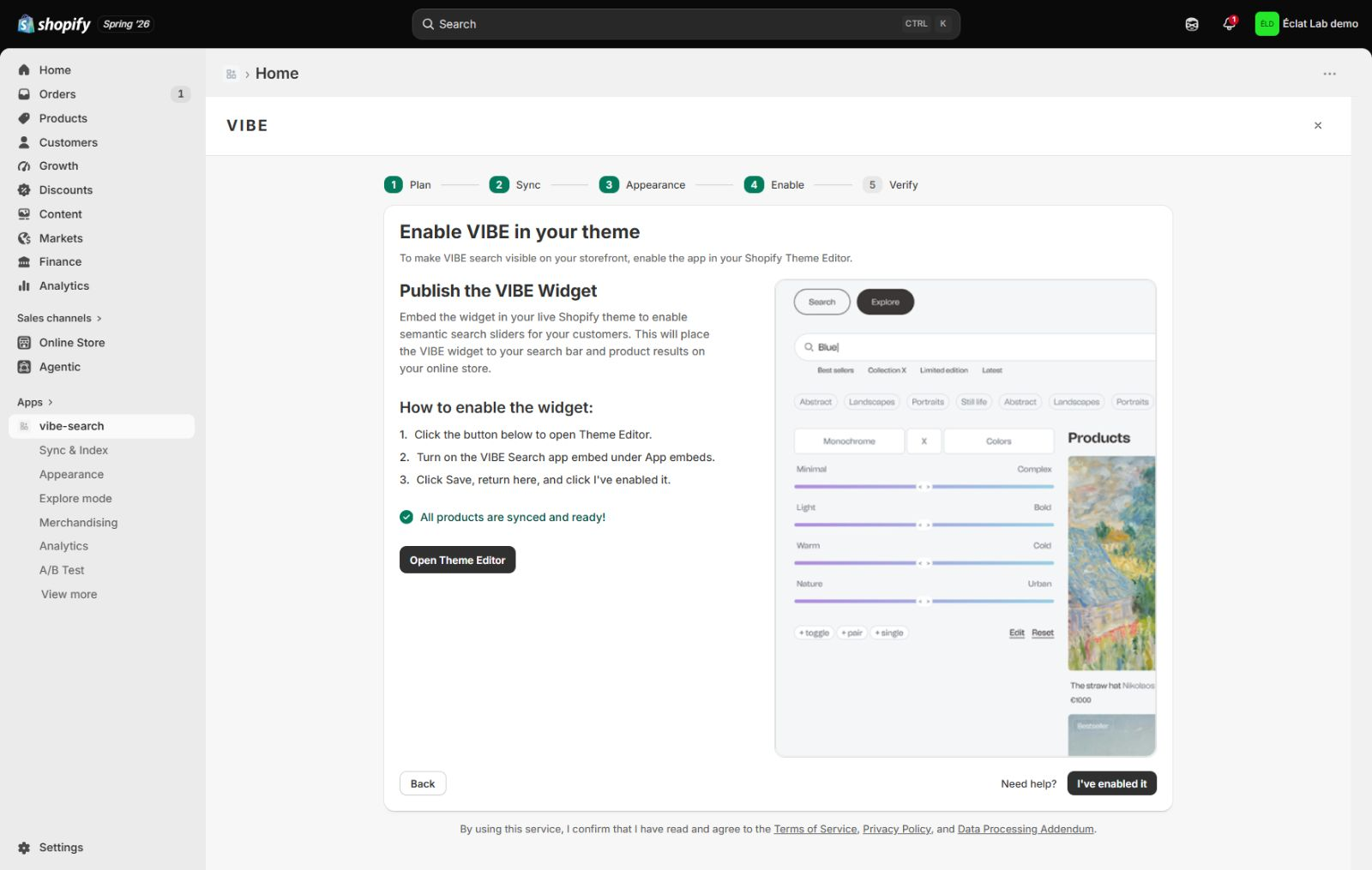
Turn on VIBE in the live theme:
- Select Open Theme Editor to open your Shopify Theme Editor. VIBE takes you straight to the right settings.
- Turn on the VIBE Search switch under App embeds.
- Select Save, return to the wizard, and select I’ve enabled it.
VIBE stays invisible to shoppers until this switch is on and the theme is saved.
For the two theme blocks VIBE provides, the optional VIBE search page, and how to turn the widget off, see Enable VIBE on your theme.
How to check it worked: back in VIBE, the Verify screen opens.
VIBE ships as a Shopify theme app extension. Turning on the VIBE Search switch under App embeds in the Theme Editor is what makes VIBE load on your storefront pages. Nothing in VIBE’s own settings can turn this on for you.
Step 6: Verify
Section titled “Step 6: Verify”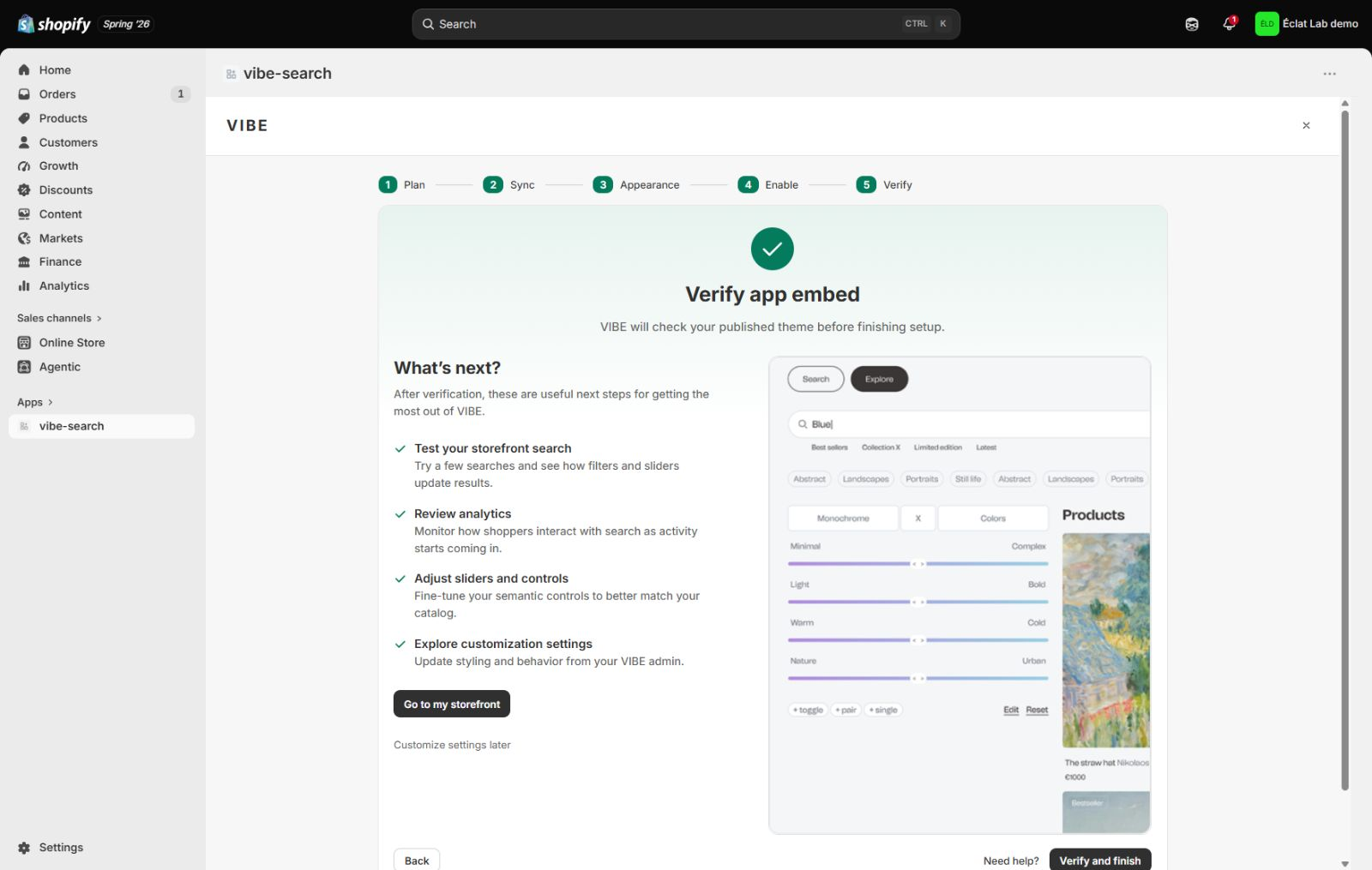
Wait while VIBE checks that the switch is on, then select Verify and finish.
Once that check passes, the screen confirms VIBE is live and shows these options:
- Test your storefront search: try a few searches and see how filters and sliders update results.
- Review analytics: watch how shoppers interact with search as activity comes in.
- Adjust sliders and controls: update your Explore controls for your catalog.
- Explore customization settings: update styling and behavior from your VIBE admin.
A Go to my storefront button opens the live store for testing.
How to check it worked: the confirmation screen shows VIBE as live, and a search on your storefront returns results.
VIBE re-checks that the VIBE Search switch is turned on and reachable before it marks setup complete. If this check fails, confirm the theme you published is the one you enabled VIBE on, and that you saved it in the Theme Editor.
Run your first search
Section titled “Run your first search”Once the switch is on, open your storefront and try it:
- Select the search bar and type a natural-language query, such as “cozy winter jacket.”
- Review the results. Meaning-based matches can appear even when the query does not match the product title.
- If Explore shows a slider control (for example, a Modern to Classic control), drag it and review the updated results.
- Apply a filter, such as a price range, to narrow the results further.
- Select a product to confirm it opens the correct product page.
Try several queries. Storefront activity appears in Analytics after shoppers begin using search.
If something looks wrong: see Diagnose search and storefront problems for a search that will not open, or the matching section for another symptom.
Next steps
Section titled “Next steps”- Enable VIBE on your theme: full theme setup, the VIBE search page, and how to disable the widget.
- Complete merchant guide: every admin area, storefront surface, and operating routine.
- Quick search and suggestions: the three quick-search modes and the complete shopper interaction.
- Full search results page: results, collections, filters, sorting, and mobile behavior.
- Open the Appearance settings to adjust styling and product-card layout.
- Open the Analytics page to track searches, top queries, and how shoppers use search.
- For support, use Need help? from the Get your catalog ready step onward, open the in-app Help page, or email vibe@coiagency.com.