Home dashboard
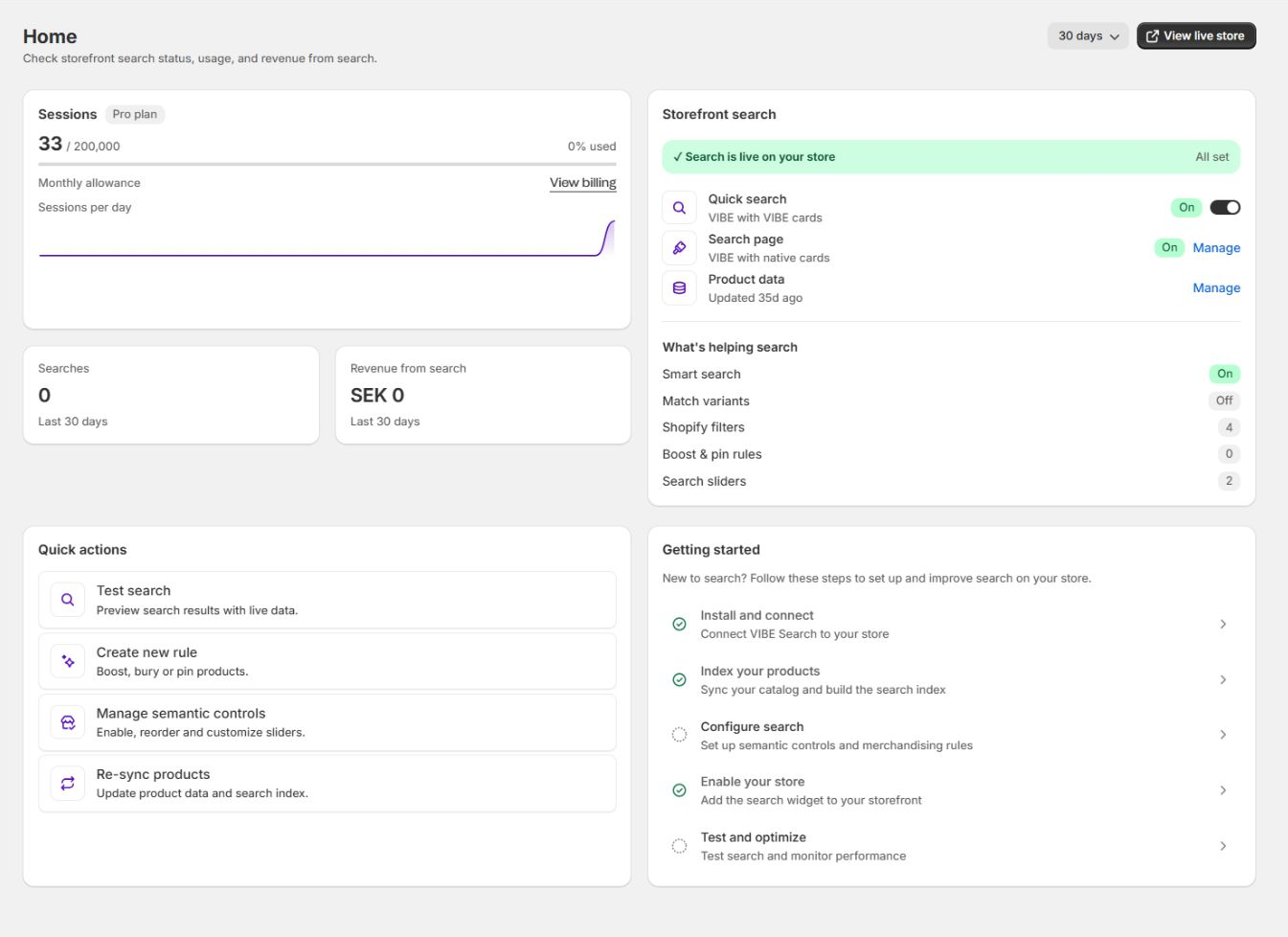
The Home page shows whether search is live, how many shopper visits you’ve used this month, your recent search performance, and shortcuts to fix anything that needs attention. Use the date control to change the period the numbers cover. Select View live store to open your storefront.
What you can do here
Section titled “What you can do here”- Check whether search is live on your storefront.
- See your shopper visits used this month, against your plan.
- Review your search performance for the last 7, 30, or 90 days.
- Jump to Search Preview, Result rules, Explore controls, or a product data update.
Shopper visits
Section titled “Shopper visits”The Sessions card shows your shopper visits used this month, compared with your plan’s monthly allowance, your plan name, and a link to billing. It’s the same number tracked in detail on the Plan and billing page.
Watch this card before a campaign or a seasonal peak, so you can see your allowance getting close before you reach it. Visit counts follow the calendar month in UTC. The date range at the top of the page controls the other numbers on Home, like total searches and revenue.
Setup status
Section titled “Setup status”Setup status lists any setup work you still need to finish:
- Search on your store shows whether VIBE is live on your storefront, with a Turn on action if it isn’t.
- Search style shows how search is presented (for example, built into your theme), with a Change action.
- Product data shows when your catalog was last updated, with a Manage action.
Work through this list from top to bottom.
Search can’t go live if the VIBE switch in your theme is off, even when every product is ready to show. And once the switch is on, a product still won’t show in results until it has been added to VIBE’s copy of your catalog. Fixing things out of order can look like nothing worked.
What’s helping search
Section titled “What’s helping search”This panel shows whether Smart search and Match variants are turned on. It also shows how many active Shopify filters, Boost and pin rules, and Search sliders you have.
Headline metrics
Section titled “Headline metrics”Four cards show Total searches, Conversion rate, Revenue from search, and No-result rate for the period you selected, each with the change from the period before it. Below them you’ll find daily search volume and your top queries. Open Analytics for the full picture.
Use the date range like this:
- Last 7 days after a launch or during an incident.
- Last 30 days for your normal weekly check-in.
- Last 90 days to see longer trends.
- Custom range to look at a specific campaign or a known change window in Analytics.
A change in a number tells you something moved, not why it moved. Before you decide what caused it, check the dates of any recent catalog, theme, rule, or campaign changes.
Quick actions
Section titled “Quick actions”Quick actions link to common tasks:
- Test search opens Search Preview so you can run a query against your catalog.
- Create new rule opens Result rules.
- Manage Explore controls opens Explore controls.
- Re-sync products updates VIBE’s copy of your catalog.
A Getting started checklist at the bottom repeats any setup steps you haven’t finished yet.
Recommended Home workflow
Section titled “Recommended Home workflow”- Confirm Search on your store is live.
- Check your shopper visits used this month.
- Review the no-result rate and total search trend.
- Open Analytics if a number needs a closer look.
- Follow one quick action to fix what you found.
- Go back to your storefront and confirm the result.
How to check it worked: either nothing on Home needs attention, or you’ve opened the right page and fixed the one thing that did.
Troubleshooting
Section titled “Troubleshooting”Home says search is not live. Open the setup action, then confirm the VIBE switch in your theme is turned on for your published theme.
Product data is old. Open Sync and Index. Check whether a job is running, partial, cancelled, or failed before you start another full update.
The dashboard has no performance data. Confirm VIBE is live on your published storefront and has received real shopper activity in the selected date range. Search Preview doesn’t count as storefront activity.
If something looks wrong beyond what’s covered here, see Diagnose search and storefront problems.