Complete merchant guide
This guide connects the complete VIBE workflow. Use it when you want to understand how the admin, VIBE’s copy of your catalog, theme integration, shopper experience, and reporting work together.
For exact button-by-button instructions, follow the linked feature guides. For a shorter first installation path, use Getting started.
Before operating VIBE, read How VIBE fits together. It explains which changes affect which products VIBE can show, the data in VIBE’s copy, ranking, presentation, or measurement. Use the Admin control reference when you need the consequence of a setting.
The VIBE workflow
Section titled “The VIBE workflow”VIBE has four connected parts:
- Catalog input: VIBE reads the products, variants, collections, images, availability, and storefront filters that you choose to use.
- VIBE’s copy: VIBE prepares that information for keyword, meaning-based, collection, variant, and image matching.
- Storefront experience: Shoppers use quick search, the full search page, Explore, filters, product-card actions, and Your Vibe.
- Merchant feedback loop: You test results, add result rules, review analytics, and run an A/B test.
A change in one part can affect the others. For example, changing the image source can require a new catalog update before image matching improves. Creating a pin rule changes result order immediately but does not change VIBE’s copy of the catalog. Changing theme cards affects presentation, not relevance.
Before you start
Section titled “Before you start”You need:
- Access to the Shopify store and its Theme Editor.
- A VIBE subscription approved through Shopify.
- At least one active product that can appear on the storefront.
- The storefront password if the store is password protected.
- A published Online Store 2.0 theme for the final live check.
If you are setting up a duplicate or development theme, select that theme during setup. VIBE can be enabled on another theme, but native product-card analysis is tied to the theme that VIBE analyzed.
First-time setup
Section titled “First-time setup”The setup wizard contains six stages.
1. Welcome
Section titled “1. Welcome”What this is: the intro screen where you pick your theme and tell VIBE how to read your products.
- Choose the theme VIBE should analyze.
- If Shopify storefront password protection is active, enter the password.
- Choose the catalog description that fits best:
- Balanced when text and product photos both explain the products.
- More visual when appearance, color, shape, or style is the stronger signal.
- More text when titles, descriptions, product types, or structured attributes carry most of the meaning.
- Select Next.
How to check it worked: the theme and preference are saved, and the Plan screen opens next.
Theme analysis is how VIBE finds the existing search input and determines whether your theme’s product cards can be used. The catalog choice guides how VIBE prepares to read your products. You can change the catalog preference later under Sync and Index > Configuration.
If something looks wrong: see Diagnose search and storefront problems.
2. Plan
Section titled “2. Plan”What this is: the screen where you start your VIBE subscription.
- Compare the shopper-visit allowance and feature list.
- Select a plan.
- Approve the subscription in Shopify.
- Return to VIBE.
How to check it worked: the plan becomes active, and its features become available. New stores that qualify receive the trial shown on the approval screen. Billing is handled by Shopify.
See Plan and billing for the current plan matrix.
If something looks wrong: open the in-app Help page if plan approval does not work as expected.
3. Get your catalog ready
Section titled “3. Get your catalog ready”What this is: VIBE analyzes your catalog, decides how to read your products, and adds them to its own copy.
- Start the analysis if it has not started automatically.
- Keep the wizard open while it reports catalog-analysis and update progress.
- Review any failed-product count.
- Continue when analysis and the first update are ready.
How to check it worked: the product count shown in Sync and Index matches, or is close to, your total catalog. VIBE keeps product changes current after this first update.
Storefront search cannot return a product until it is in VIBE’s copy of your catalog. Collection search, variant matching, and image matching also depend on their related data being there too. This stage also decides how VIBE reads your products going forward (internally called a search profile).
If something looks wrong: see A product is completely missing.
4. Appearance
Section titled “4. Appearance”What this is: the screen where you choose how search opens and how product cards look.
- Review the analyzed theme.
- Choose a quick-search mode.
- Choose VIBE or theme product cards for the full search page.
- Continue with the safe VIBE-rendered option if the theme-card option is not ready.
How to check it worked: the selected modes are saved, and the Enable screen opens next. You can change them later on the Appearance page.
VIBE can render its own overlay and cards, use your theme’s cards inside the VIBE overlay, or work through the theme’s existing search surface. The best choice depends on how closely you need search to match the theme, and whether the theme check found a compatible surface.
If something looks wrong: see Search does not open or The full search page shows the old results.
5. Enable
Section titled “5. Enable”What this is: the screen where you turn on the VIBE code on your store through the VIBE Search switch.
- Open the Theme Editor from the wizard.
- Open App embeds.
- Turn on VIBE Search.
- Save the theme.
- Return to VIBE and run the verification.
To use the full VIBE results page, also add the Search Page app block to the search template. To place Explore on another page, Pro and Enterprise stores can add the VIBE Explore app block as a section.
See Enable VIBE on your theme.
How to check it worked: back in VIBE, the check confirms the switch is on, and the Verify screen opens next.
VIBE can be configured and have products added to its copy while the storefront still uses the old search. The VIBE Search switch is the live connection between the theme and VIBE: nothing works for shoppers until it is on.
If something looks wrong: see Search does not open.
6. Verify
Section titled “6. Verify”What this is: the screen that confirms setup is complete and gives you a direct storefront test.
- Open the storefront.
- Open search from the header.
- Search for an exact product name.
- Search for a broad intent, such as “light jacket for rain.”
- Open the full results page.
- Test on desktop and mobile.
How to check it worked: search opens without a JavaScript error, relevant products appear, product links work, and the selected product-card design is used.
A successful admin setup does not prove the published theme opens the expected search experience. Always test the same theme and market that shoppers use.
If something looks wrong: see Diagnose search and storefront problems.
Every admin area
Section titled “Every admin area”| Area | What it controls | Why you use it | Common action |
|---|---|---|---|
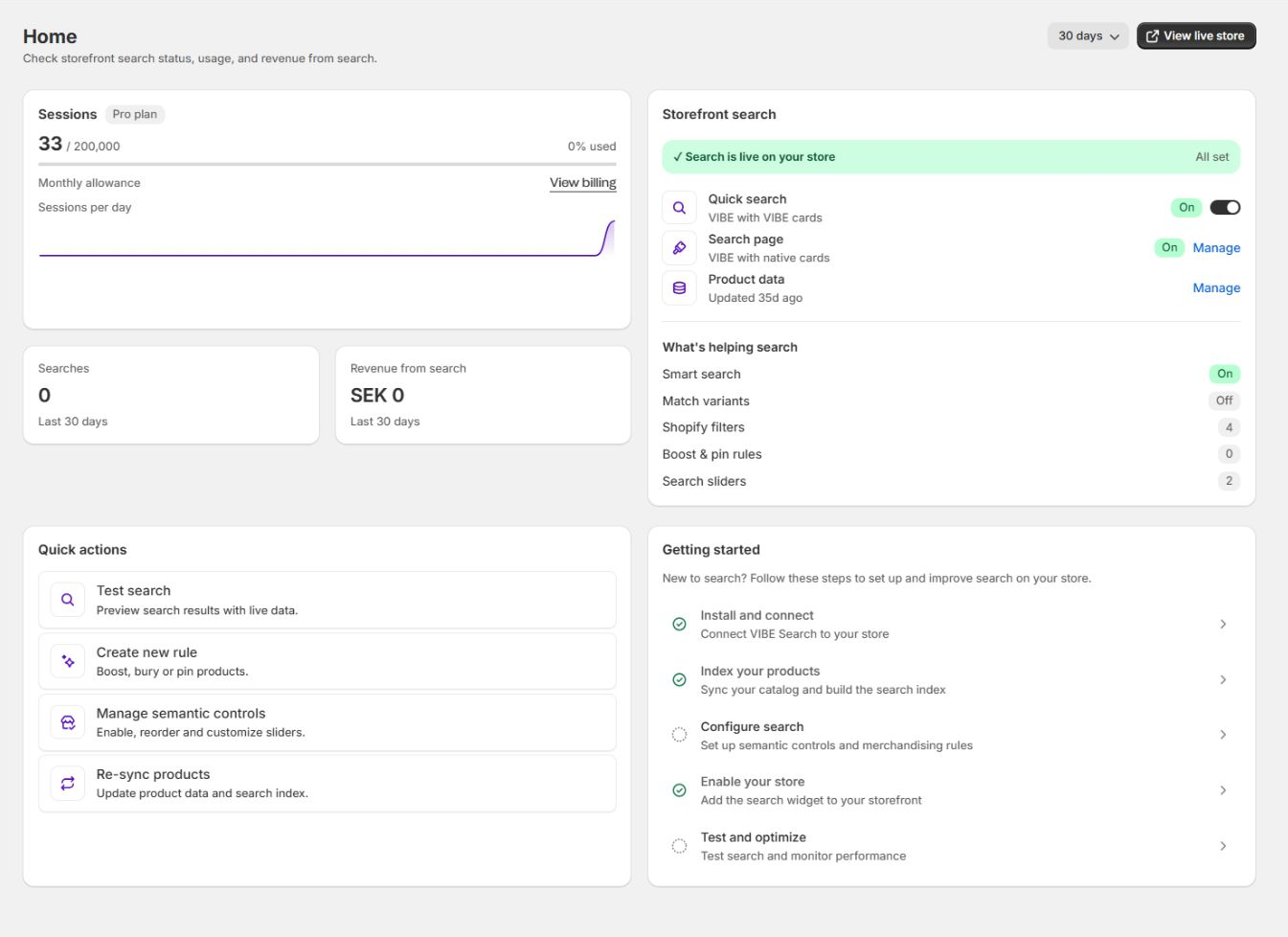
| Home | Live status, plan usage, headline performance, setup checklist, and shortcuts | Find the next operational task without opening every page | Check whether search is live and follow an unfinished setup item |
| Sync and Index | Catalog visibility, VIBE’s copy of your catalog, how VIBE reads your products, collection and variant search, image sources, out-of-stock handling, and GTM | Control what can be found and which product data VIBE uses | Update VIBE’s copy again after a large catalog change or hide a product from search |
| Appearance | Quick search, search page, storefront wording, visual style, product-card mode, and theme installation | Control how search opens and what shoppers see | Change the quick-search mode or re-check a new theme |
| Explore mode | Explore controls, product-card actions, Shopify filters, starting collections, and Explore impact | Give shoppers ways to browse without knowing the exact query | Generate controls, feature collections, or enable Similar and Taste |
| Merchandising | Boost, bury, pin, redirect, synonym, and behavioral rules | Apply business decisions that normal relevance should not infer | Pin a launch product or redirect a service query |
| Analytics | Search volume, engagement, sales VIBE helped create, query and product opportunities, no-result terms, and filter use | Decide which problems and opportunities are worth acting on | Fix a high-volume no-result query |
| A/B Test | Controlled comparison between VIBE and Shopify native search | Measure whether VIBE changes shopper behavior on your own store | Run one clean test after setup is stable |
| Search Preview | Diagnostic text search and Explore browsing without storefront analytics or billable usage | Test relevance before changing the live storefront | Inspect why a product ranks where it does |
| Plan and Billing | Subscription, shopper-visit usage, feature access, and rule limits | Understand cost and get access to the needed capability | Change plan through Shopify |
| Help | Setup wizard, FAQ, documentation, changelog, system data, and support contact | Recover from setup or operational problems | Reopen setup or send a support email |
See Admin pages overview for the controls available on each screen.
The shopper journey
Section titled “The shopper journey”Quick search
Section titled “Quick search”Quick search opens when a shopper focuses or types in the store’s search input. Depending on your Appearance setting, VIBE either opens its own overlay or supplies results to the theme’s existing predictive-search surface.
The VIBE overlay can show:
- Products and collections.
- Suggested search terms.
- Pinned and popular searches.
- Matching articles and pages.
- Explore and Your Vibe tabs when the plan and settings allow them.
- Find similar, save, and image-search actions when enabled.
Read Quick search and suggestions.
Full search page
Section titled “Full search page”The full page is the store’s /search destination. The VIBE Search Page app block gives VIBE a dedicated place to render the query, result counts, product and collection tabs, sorting, filters, and paginated loading.
Before a query, the page can show recommended products and selected collections. After a query, it keeps the query and selected refinements in the page URL so the browser’s back and forward actions work as expected.
Read Full search results page.
Explore and Smart Filters
Section titled “Explore and Smart Filters”Explore lets shoppers browse by meaning instead of starting with a precise query. Controls can lean results between two concepts, choose one of two options, or strengthen one concept. Shopify Search and Discovery filters add exact constraints such as availability, price, color, or product type.
Use Explore controls for preferences and filters for facts. “More formal” is a good control. “Size M” is a good filter.
Read Explore and Smart Filters.
Visual discovery and Your Vibe
Section titled “Visual discovery and Your Vibe”- Find similar starts from a product and returns visually related products.
- Taste or the star action saves a product in the shopper’s browser.
- Your Vibe shows saved products and boards of related recommendations.
- Image search lets a shopper upload a JPG or PNG and find visually related products.
Read Visual discovery and Your Vibe.
How to improve a weak result
Section titled “How to improve a weak result”Use this order so each change addresses the right cause.
- Confirm VIBE can show the product. Check that it is active, in VIBE’s copy, not hidden, and handled correctly by the out-of-stock setting.
- Confirm the correct data is in VIBE’s copy. Review how VIBE reads your products, catalog preference, image sources, collection search, and variant search.
- Run Search Preview. Test the exact query and select the product to inspect keyword, meaning-based, product, and catalog-update data.
- Choose the smallest fix.
- Update Shopify product data when the product itself is unclear.
- Change how VIBE reads your products when many queries have the same relevance problem.
- Add a synonym when shoppers use a different term for the same concept.
- Add a pin, boost, or bury rule for a deliberate merchandising decision.
- Add a redirect when the correct answer is a collection, page, or campaign destination.
- Test again in Search Preview.
- Test the storefront. This confirms theme cards, filtering, sorting, and navigation as well as ranking.
- Measure the result. Watch the affected query, click-through, cart activity, and revenue in Analytics.
Do not use a result rule to hide a catalog problem. Do not update VIBE’s copy repeatedly when the only issue is a rule priority.
For symptom-by-symptom checks, use Diagnose search and storefront problems. For a deeper explanation of how signals and rules combine, use Search relevance and ranking.
Regular operating routine
Section titled “Regular operating routine”Weekly
Section titled “Weekly”- Open Home and confirm search is live.
- Review monthly shopper-visit usage.
- Open Analytics > Search insights.
- Check top no-result queries and high-volume queries with weak engagement.
- Test the important queries in Search Preview.
- Update product data or one rule at a time.
- Confirm the change on the storefront.
After a catalog launch
Section titled “After a catalog launch”- Confirm the new products are active in Shopify.
- Check their status in VIBE’s copy.
- Select Run full sync if the launch included a bulk import or major data-model change.
- Test exact names, category terms, and shopper-language queries.
- Add only the business rules required for the launch.
- Review results again after enough shopper traffic has accumulated.
After a theme change
Section titled “After a theme change”- Open Appearance > Installation.
- Select Re-check my theme.
- Confirm the VIBE Search switch is on in the new published theme.
- Confirm the Search Page block is on the search template.
- Re-evaluate theme product-card modes.
- Test header search, full search, mobile filters, and product links.
Before an A/B test
Section titled “Before an A/B test”- Complete setup and let the catalog update finish.
- Resolve obvious no-result and installation problems.
- Avoid changing the theme, how VIBE reads your products, or major rules during the test.
- Start the test and let it reach its normal completion condition.
- Read the complete result table, not only one conversion metric.
Launch checklist
Section titled “Launch checklist”- The correct theme was analyzed.
- The VIBE Search switch is turned on and saved.
- The Search Page block is present if you use the VIBE full results page.
- Products, collections, and required variants are in VIBE’s copy.
- Hidden-item and out-of-stock settings are correct.
- Quick search opens from every header search entry point.
- Exact-name, broad-intent, typo, and no-result queries behave sensibly.
- Product cards link to the correct products and variants.
- Desktop and mobile layouts are usable.
- Filters, sorting, and load-more actions work.
- Explore controls have clear labels and start neutral.
- Featured starting collections are intentional.
- Similar, Taste, Your Vibe, and image search are tested if enabled.
- Published languages use the intended storefront text.
- GTM events are enabled only if the store has a GTM implementation ready to receive them.
- Analytics begins recording storefront activity.
- The support team knows the store domain, selected plan, and launch date.
Use the full Go-live quality assurance checklist for the admin, quick-search, full-page, Explore, visual-discovery, language, accessibility, analytics, and rollback test matrix.
Change and optimization playbooks
Section titled “Change and optimization playbooks”- Use Catalog and theme change playbook for imports, inventory, image sources, catalog-reading capabilities, published themes, product-card changes, and new languages.
- Use Measure and optimize search for weekly reporting, metric interpretation, improvement selection, change records, and A/B-test readiness.
- Use Privacy, shopper visits, and sales tracking for counting shopper visits, browser storage, GTM events, A/B assignment, and the sales VIBE tracks.
When to contact support
Section titled “When to contact support”Email vibe@coiagency.com when:
- Theme analysis cannot find a search input or usable product card.
- The VIBE Search switch is on but VIBE does not load.
- A catalog update remains failed after the underlying Shopify product problem is fixed.
- Products in VIBE’s copy consistently return incorrect results across unrelated queries.
- Billing status in VIBE does not match the approved Shopify subscription.
- A storefront error affects shoppers.
Include the .myshopify.com domain, affected theme, page URL, exact query, expected result, actual result, and a screenshot or short recording.
To request a call, send the prefilled scheduling email.