Launch and operating playbook
Use this playbook for real operating tasks. Each workflow explains the goal, the order of work, what success looks like, and when to stop and investigate.
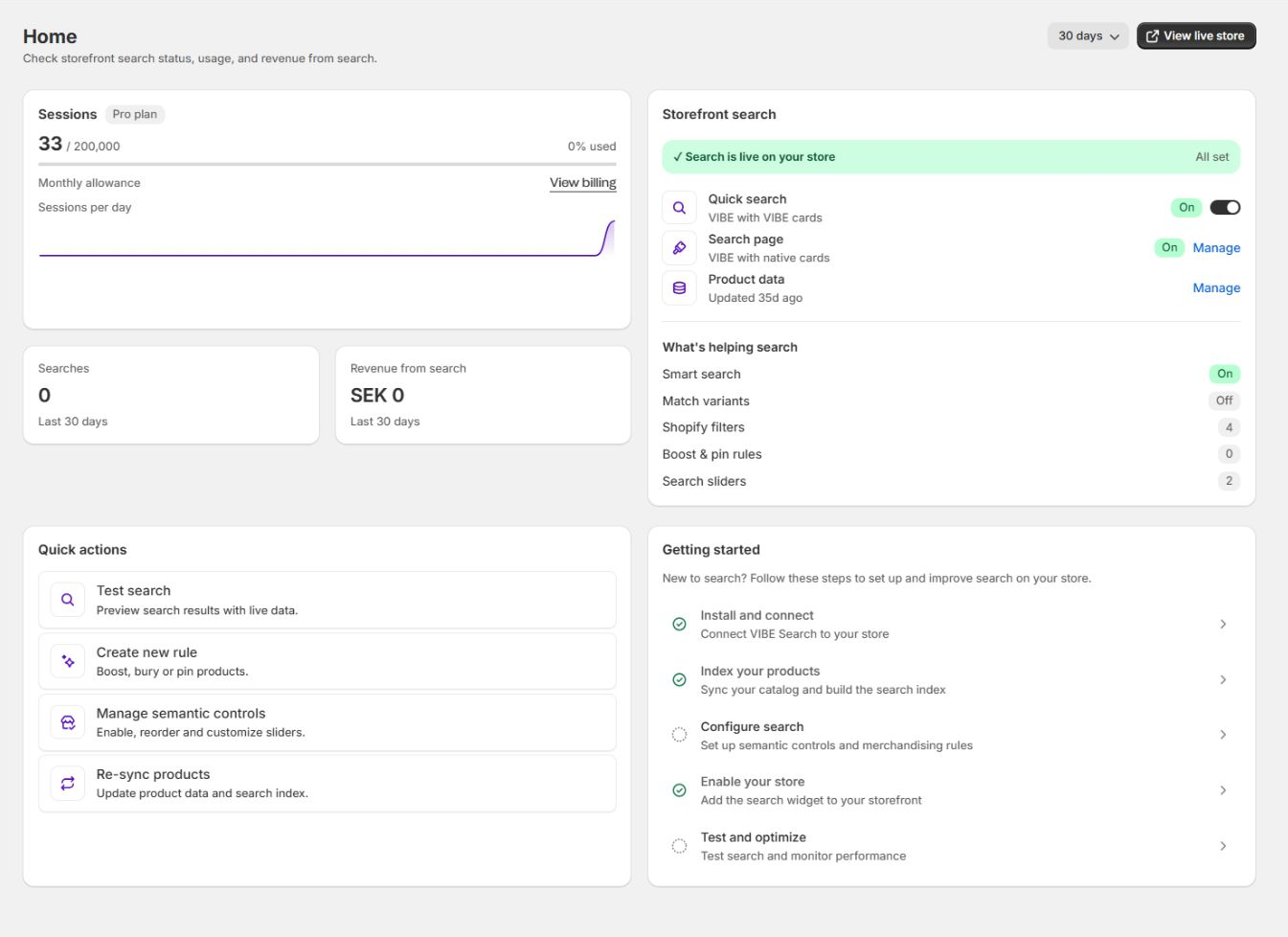
Home is the operational checkpoint before and after each workflow.
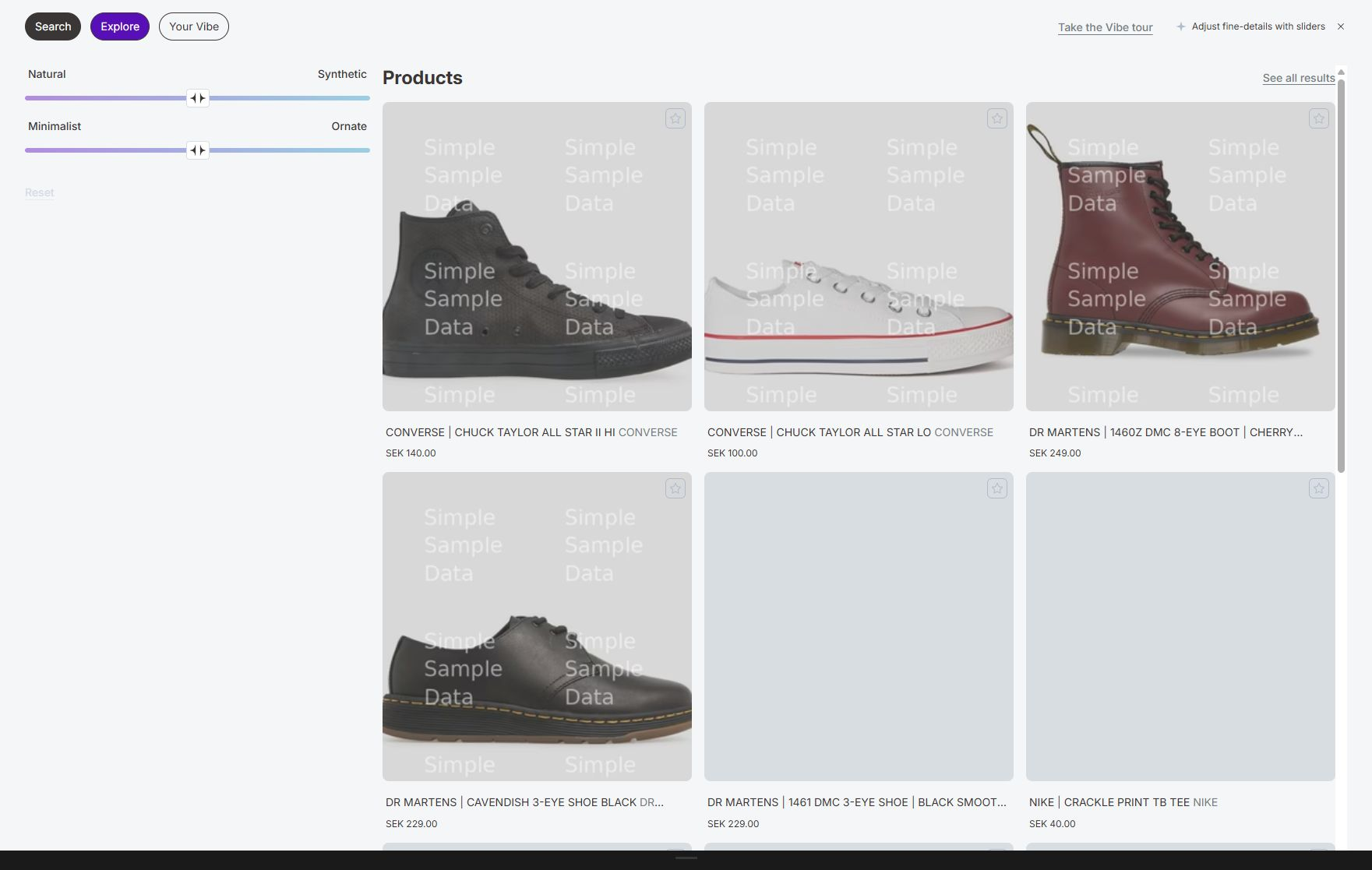
Storefront QA must include every discovery mode enabled for the current plan.
Workflow 1: Launch VIBE on a store
Section titled “Workflow 1: Launch VIBE on a store”Publish VIBE with a complete catalog, a verified theme connection, and a tested shopper journey.
- Complete the setup wizard.
- Open Sync and Index and wait for the first full catalog update to finish.
- Review failed-product counts and exclusions.
- Open Appearance > Installation and confirm the correct published theme.
- Turn on the VIBE Search switch.
- Add the Search Page app block to the search template.
- Choose the quick-search and search-page card modes.
- Configure translations for each published language included in the plan.
- Test an exact product, broad category, intent query, typo, and no-result query.
- Test filters, sorting, and another result batch.
- Test Explore and visual actions if included.
- Confirm Analytics begins receiving activity.
Success
Section titled “Success”- The published theme opens VIBE from every header search entry point.
- Quick search and the full page use the intended cards.
- Products and collections open correctly.
- Mobile controls remain usable.
- The admin reports the switch and search page as ready.
Stop and investigate if
Section titled “Stop and investigate if”- An update is still running or has failed products.
- Theme analysis reports the selected native-card mode is not ready.
- Search Preview works but the storefront does not.
- Two search result sections appear on the search template.
See Diagnose search and storefront problems for any of these.
Workflow 2: Add a large batch of products
Section titled “Workflow 2: Add a large batch of products”Make a bulk catalog launch searchable without replacing good live results during processing.
- Complete the Shopify import and confirm product status, sales-channel availability, images, prices, and variants.
- Wait for normal product-update processing when the change is small.
- Select Run full sync for a large import or structural catalog change.
- Monitor product progress and the final failed count.
- Search exact new titles in Search Preview.
- Test category and intent terms that should include the new products.
- Confirm collection search and variant search where applicable.
- Add launch result rules only after the products can rank normally.
Success
Section titled “Success”The new products are in VIBE’s copy, exact-title tests work, and broad queries include them without hiding established relevant products.
Stop and investigate if
Section titled “Stop and investigate if”- Products are not active or available in Shopify.
- The update reports repeated failures for the same products.
- A product is hidden by a collection, tag, or product exclusion.
- The fields VIBE reads from do not contain useful product information.
See A product is completely missing for any of these.
Workflow 3: Fix a product that is missing from results
Section titled “Workflow 3: Fix a product that is missing from results”Find the actual reason for the missing product before adding a rule.
- Check the product in Shopify:
- Active status.
- Online Store sales-channel availability.
- Correct title and description.
- Product type, vendor, tags, options, and images.
- Inventory state.
- Open Sync and Index > Configuration.
- Check hidden products, hidden collections, and hidden tags.
- Check out-of-stock handling.
- Confirm VIBE’s copy was last updated after the product change.
- Run the exact product title in Search Preview.
- Select the product in Preview and inspect Product sync and Product data.
- Run a broader query that should match it.
- Update VIBE’s copy again only if the product data is stale or missing.
Success
Section titled “Success”The product appears for an exact title and makes sense in broader searches.
Do not
Section titled “Do not”- Add a pin rule before proving the product is searchable.
- Run repeated full catalog updates when the product is intentionally hidden.
- Change global profile settings for one isolated merchandising preference.
If something looks wrong: see A product is completely missing.
Workflow 4: Improve a weak high-volume query
Section titled “Workflow 4: Improve a weak high-volume query”Improve an important query using evidence from Analytics and Preview.
- Open Analytics > Search insights.
- Choose a stable date range.
- Identify a query with meaningful volume and weak clicks, carts, purchases, or no results.
- Run the exact query in Search Preview.
- Review the top products and select individual rows for diagnostic data.
- Classify the problem:
- Missing or poor Shopify product data.
- Wrong catalog-profile signal.
- Shopper vocabulary differs from catalog vocabulary.
- A deliberate commercial priority is missing.
- The correct destination is not a product list.
- Apply the smallest matching fix:
- Product-data update.
- A change to how VIBE reads your products, then an update.
- Synonym.
- Boost, bury, or pin.
- Redirect.
- Re-run Preview.
- Test on the storefront with sorting set to Relevance and filters cleared.
- Review the query again after new traffic accumulates.
Success
Section titled “Success”The intended products move into useful positions, unrelated queries remain sensible, and shopper engagement improves over a comparable period.
If something looks wrong: see Results are irrelevant for broad intent queries.
Workflow 5: Create a merchandising campaign
Section titled “Workflow 5: Create a merchandising campaign”Apply a business decision without rewriting the catalog.
- Define the exact trigger query.
- Decide the intended result:
- Pin a specific product to a position.
- Boost one or more products.
- Bury a product that is relevant but commercially less useful.
- Redirect the query to a collection or page.
- Add a synonym for equivalent language.
- Use behavioral ranking on plans that include it when shopper behavior should influence close matches.
- Open Merchandising and select Create rule.
- Choose the rule type.
- Enter the trigger and target.
- Set priority.
- Enable timing only when the current plan and rule form provide it.
- Save the rule.
- Test it in Search Preview.
- Review it on the storefront.
- Watch rule use and the sales it helped create.
Success
Section titled “Success”The rule changes only the intended query or target, and its priority is clear relative to overlapping rules.
Stop and investigate if
Section titled “Stop and investigate if”- A redirect conflicts with another rule for the same trigger.
- A pin position is outside the useful visible range.
- Several rules compensate for the same missing product data.
- The rule limit is reached.
If something looks wrong: for a redirect conflict, see A redirect does not run; for a pin or rule-priority conflict, see A product ranks too low.
Rule-limit and multi-rule-compensation issues are plan and configuration concerns, not storefront symptoms, so the diagnose guide has nothing to link there.
Workflow 6: Configure Explore for shoppers
Section titled “Workflow 6: Configure Explore for shoppers”Offer useful guided browsing with a small, understandable set of controls and collections.
- Confirm the store is on Growth or higher.
- Complete a catalog update.
- Open Explore mode and turn on the master switch.
- Generate default controls.
- Keep the clearest controls active.
- Add custom controls for store-specific concepts.
- Put the most useful controls first.
- Set Starting collections to Featured only or All collections.
- Feature a short collection list.
- Refresh Shopify filters and enable them.
- Enable Similar and Taste if desired.
- Test on desktop and mobile.
- Review Control engagement after enough usage.
Success
Section titled “Success”Shoppers can predict what each control does, exact filters combine correctly, and the first Explore view is not overloaded.
If something looks wrong: see An Explore control has little effect.
Workflow 7: Publish a new theme
Section titled “Workflow 7: Publish a new theme”Move VIBE to a new published theme without losing search.
- Duplicate and prepare the new theme.
- Open VIBE setup or Appearance > Installation.
- Select or analyze the new theme.
- Enter the storefront password if required.
- Wait for theme analysis.
- Review quick-search and full-search card readiness.
- Turn on the VIBE Search switch on the new theme.
- Add the Search Page app block to the new theme’s search template.
- Add the standalone Explore block where used.
- Save the theme.
- Preview the theme before publishing.
- Test header search, full search, cards, filters, mobile layout, and links.
- Publish only after the checks pass.
- Re-check the published theme from Appearance.
Success
Section titled “Success”The new live theme reports ready and search works without falling back to the old theme surface.
If something looks wrong: see Search does not open.
Workflow 8: Change how VIBE reads your products or images
Section titled “Workflow 8: Change how VIBE reads your products or images”Change how VIBE understands products while controlling the effect on live search.
- Record the current behavior with representative Preview queries.
- Open Sync and Index > Configuration.
- Change one area:
- Catalog understanding.
- Collection search.
- Variant search.
- Product-photo source.
- Context-photo source.
- Search by image.
- Read the admin message about whether a new profile or catalog update is required.
- Allow the analysis and update to finish.
- Repeat the same Preview queries.
- Test text and visual storefront searches.
- Keep the change only if it improves the target cases without damaging the control queries.
Success
Section titled “Success”The active profile is ready, VIBE’s copy is current, and the before-and-after query set shows the intended improvement.
If something looks wrong: for text relevance, see Results are irrelevant for broad intent queries; for image search, see Similar or image search is weak.
Workflow 9: Review weekly performance
Section titled “Workflow 9: Review weekly performance”- Open Home and check live status and shopper-visit usage.
- Open Analytics and select a consistent range.
- Review Overview for major changes.
- On Growth or higher, inspect:
- Engagement.
- Sales VIBE helped create.
- Search insights.
- Record:
- High-volume no-result queries.
- High-volume queries with weak clicks.
- Products with impressions but weak engagement.
- Hidden gems with good outcomes but low exposure.
- Most-used filters.
- Query-product winners.
- Choose one to three actions.
- Test and implement each action separately.
- Add a note outside VIBE with the change date so later comparisons have context.
Success
Section titled “Success”The review ends with specific product-data, profile, merchandising, or storefront actions. It should not end with a long list of metrics and no decision.
If something looks wrong: see Analytics is empty.
Workflow 10: Run an A/B test
Section titled “Workflow 10: Run an A/B test”Compare VIBE and Shopify native search under stable conditions.
- Finish setup and resolve known search defects.
- Avoid starting immediately before a major theme, catalog, or campaign change.
- Open A/B Test.
- Start the test.
- Keep search configuration stable.
- Monitor shopper visits and searches for both variants.
- Let the test run for at least 7 days and until the normal completion rule, with a 14-day maximum.
- Read click-through, add-to-cart, conversion, revenue per visit, searches per visit, products viewed, and time to product view.
- Check whether the page reports enough data for a reliable conclusion.
- Save the operational conclusion and wait through the cooldown before another test.
Success
Section titled “Success”Both variants collected useful traffic, the test was not contaminated by major changes, and the final decision considers the complete metric set.
Workflow 11: Contact support efficiently
Section titled “Workflow 11: Contact support efficiently”Give support enough information to reproduce the problem quickly.
Include
Section titled “Include”.myshopify.comdomain.- Published theme name.
- Affected page and URL.
- Browser and device.
- Exact query or control.
- Expected result.
- Actual result.
- Time the issue occurred.
- Screenshot or short recording.
- Whether Search Preview shows the same problem.
- Recent catalog, theme, profile, or rule changes.
Email vibe@coiagency.com.
To schedule a call, use the prefilled email request.