FAQ and troubleshooting
Use this page to check common setup, catalog, storefront, and billing questions. If these do not solve your problem, see Still need help?.
Where things live in VIBE: Sync and Index, Appearance, Search Preview, Explore mode, Merchandising, A/B Test, Analytics, Plan and billing, and Help are all in the left-hand navigation of the VIBE admin.
1. Why isn’t VIBE search showing up on my storefront?
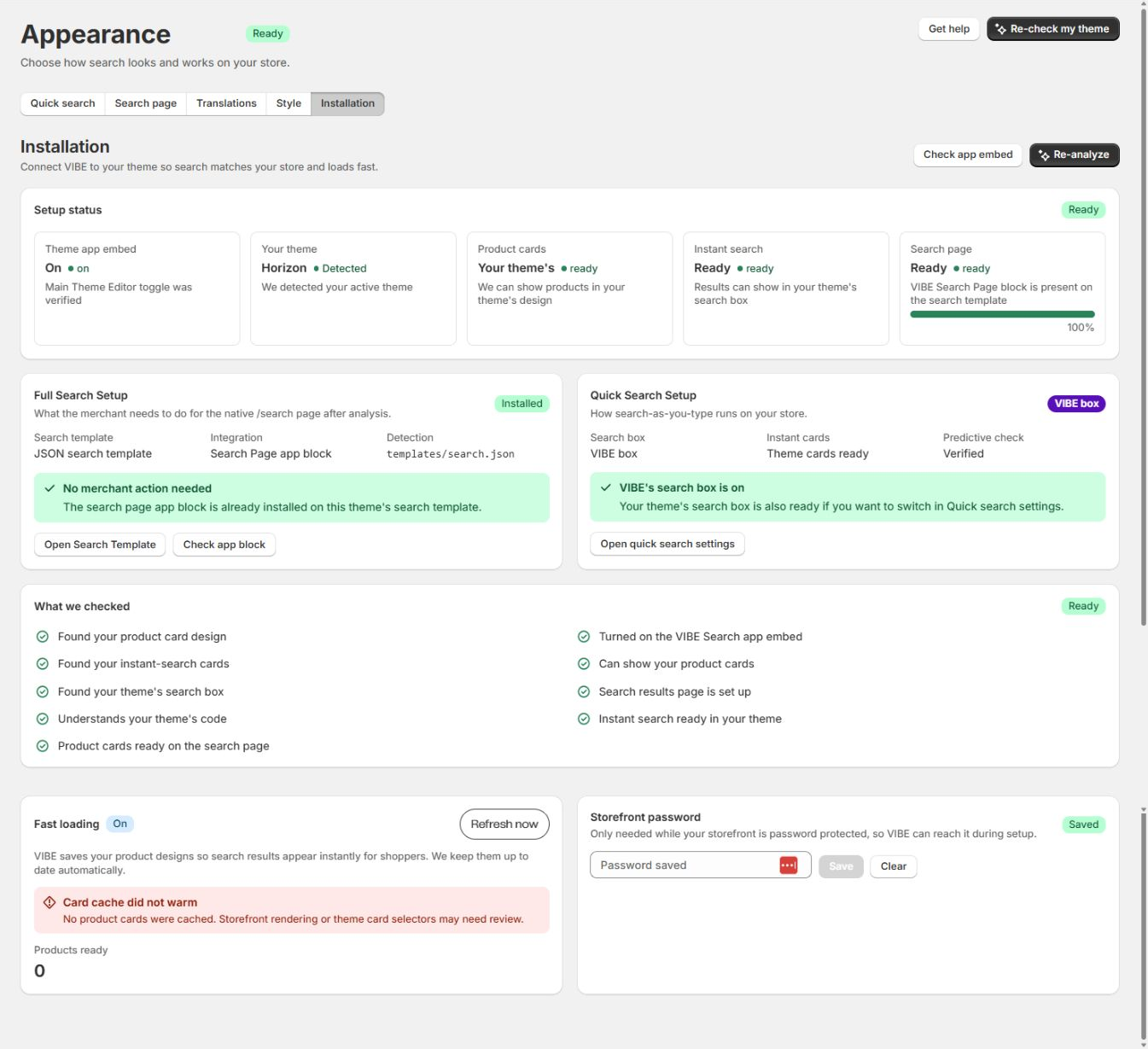
Section titled “1. Why isn’t VIBE search showing up on my storefront?”The most common cause is that the VIBE switch in your theme is not turned on. Turning VIBE on for your store does not automatically place it on your live storefront. You turn that switch on from the Shopify Theme Editor.
Check:
- In VIBE, open Appearance (or continue onboarding) and select Open Theme Editor. This takes you straight to the VIBE switch in your active theme.
- In the Theme Editor, turn on the VIBE Search switch.
- Select Save in the Theme Editor, then return to VIBE.
- Open your live storefront and use your store’s search (the icon, box, or drawer in your header).
Still not showing?
- Confirm the switch is on. If it’s off, VIBE will not load on your storefront at all. Reopen the Theme Editor and check it is turned on and saved.
- Check you’re on the right theme. Make sure you turned the switch on for your published theme, not a draft.
- Hard refresh. Themes and storefronts are cached in your browser. Reload the storefront page to clear the old version.
- Confirm your products are in VIBE’s copy of your catalog. If nothing has updated yet, search opens but finds nothing. See Why is a product missing from my search results?.
2. Why does my store’s old search still open instead of VIBE?
Section titled “2. Why does my store’s old search still open instead of VIBE?”When VIBE runs as an overlay, it watches for clicks on your theme’s search controls (the search icon, links to /search, search modals or drawers, and search input fields) and opens the VIBE overlay instead. If your theme’s original search still opens, check these in order.
Check:
- Confirm the VIBE switch is on and saved (see question 1). The overlay only takes over search once the switch is on for your published theme.
- Hard refresh the storefront to clear any cached version of the page from before you turned the switch on.
- Check your search-box setting in Appearance. VIBE can run as an overlay (a full-screen VIBE search) or in your theme’s search box (results shown inside your theme’s own search interface). What you see depends on this setting.
- Custom or heavily modified themes: if your theme uses unusual markup for its search button, VIBE may not recognize it automatically. Open Appearance and confirm the search elements it detected look right for your theme, then test again. See Which Shopify themes does VIBE work with?.
Your theme’s native search can flash briefly before the VIBE overlay opens. That’s normal.
3. Why is a product missing from my search results?
Section titled “3. Why is a product missing from my search results?”VIBE only shows products that are in VIBE’s copy of your catalog. Check the following when a product is missing.
Update VIBE’s copy of your catalog:
- Go to Sync and Index.
- Select Run full sync and wait for the green Up to date badge. The progress bar shows how many products have been processed.
- Test your search again on the storefront.
VIBE leaves a product out of search when any of these are true:
- The product’s status is not Active (drafts and archived products are skipped).
- The product is not published (it has no publish date).
- The product is not published to the Online Store sales channel.
- The product has Shopify’s “hidden from search engines” setting turned on (the
seo.hiddenmetafield, set to1ortrue). - The product matches one of your exclusion rules.
Check your exclusion rules:
- Go to Sync and Index and open the Exclude from Search section.
- Review the Active Rules list. Products can be excluded by product, by collection, or by tag: a product is hidden if it matches any active rule.
- To bring an excluded product back, select Remove on the matching rule, then update VIBE’s copy of your catalog again.
A product you just changed isn’t showing yet. Wait a short while for VIBE’s automatic update. If it still doesn’t appear, update VIBE’s copy of your catalog manually.
No product limit. VIBE keeps a copy of your full catalog on every plan. There is no cap on how many products it can show.
4. Why does a search return no results when it should find something?
Section titled “4. Why does a search return no results when it should find something?”An empty result can be caused by the words you searched, whether the product is visible, whether it’s in VIBE’s copy of your catalog, or an active filter.
Check:
- Confirm your catalog is up to date. Go to Sync and Index and check that products are in VIBE’s copy and the status reads Up to date. If nothing is there, select Run full sync.
- Check the product isn’t excluded or unpublished. See why is a product missing from my search results: a product that’s a draft, unpublished, hidden, or excluded never appears, no matter the search.
- Try a simpler search. VIBE combines exact keyword matching with search by description, so natural phrases usually work. If a very specific or long search returns nothing, try fewer, simpler words.
- Check active filters. If a price, vendor, type, or availability filter is applied, results are narrowed to match it. Clear the filters and search again.
- Compare with Search Preview. Open Search Preview in the admin and run the same search. If it finds results there but not on the storefront, the problem is on the storefront or theme side. If it’s empty in both places, the problem is your catalog or the search itself.
Reaching your monthly shopper-visit allowance does not cause empty results. Check your catalog, exclusions, filters, and the search words first.
If VIBE’s meaning-based search is briefly unavailable, VIBE falls back to keyword matching so search keeps working.
5. How is VIBE search different from Shopify’s built-in search?
Section titled “5. How is VIBE search different from Shopify’s built-in search?”Shopify’s native storefront search mostly matches exact keywords against your product fields. VIBE adds search by description (meaning-based search) on top of keyword matching, so it can understand more than the exact words typed.
VIBE also:
- Understands natural language. Shoppers can search “something warm for winter” or “cozy autumn jacket” and get relevant products even when those exact words aren’t in the title or description.
- Understands related concepts and intent, not just literal word matches.
- Adds autocomplete, Explore controls, result rules, A/B testing, and Analytics, depending on your plan.
You can measure the difference yourself with the built-in A/B Test. See how does the A/B test’s control group work?
What’s the difference between VIBE cards and your theme’s cards?
Section titled “What’s the difference between VIBE cards and your theme’s cards?”VIBE cards are product cards designed and rendered by VIBE. Your theme’s cards use your Shopify theme’s own verified product-card design and styling.
The card choice changes how products look, not how VIBE ranks them:
- VIBE’s search box uses the VIBE overlay and VIBE cards.
- VIBE’s search box with your theme’s cards uses the VIBE overlay, but shows product cards styled like your theme.
- Your theme’s search box keeps your theme’s own search interface, while VIBE supplies the ranked results.
- The full VIBE search page can use either VIBE cards or your theme’s verified cards.
If your theme’s card can’t be shown for a product on a VIBE-rendered surface, VIBE shows its own card for that product instead, so the result still appears. See Product cards and search surfaces for the full picture of how cards and search surfaces work together.
6. Why did I get a usage or billing notice?
Section titled “6. Why did I get a usage or billing notice?”VIBE bills each store by monthly shopper visits. VIBE counts a visit as soon as it loads for a real shopper on your storefront, not only when they search or use Explore. Extra searches, clicks, and cart actions inside that same visit don’t create another billable visit.
Usage rules:
- At 80%: VIBE sends a usage warning so you can review your plan before you reach your included allowance.
- Starter, Growth, and Pro overage: search keeps working after you use your included allowance. Extra shopper visits are billed at $5 per 1,000 under the Shopify-approved usage terms for your plan.
- Enterprise: a fixed subscription price with no usage overage.
- A/B test control group: while a test is running, visits assigned to your theme’s native search aren’t counted as VIBE visits.
- Per-shopper rate protection: a short limit protects search from an unusually large burst of requests from one shopper. If it triggers, that shopper’s extra requests are briefly slowed, and normal search resumes automatically.
Check:
- Go to Plan and billing.
- Compare your monthly shopper visits with the allowance included in your plan.
- Review the overage terms shown for your subscription.
- Upgrade if you need a larger allowance or more features.
- If the usage shown doesn’t look right, email vibe@coiagency.com with your store domain and a screenshot of the usage meter.
Current plans:
| Plan | Price | Included monthly shopper visits | Standard overage | Usage cap per billing cycle |
|---|---|---|---|---|
| Starter | $149 / mo | 25,000 | $5 per 1,000 visits | $50 |
| Growth | $349 / mo | 100,000 | $5 per 1,000 visits | $150 |
| Pro | $799 / mo | 400,000 | $5 per 1,000 visits | $300 |
| Enterprise | $1,299 / mo | 1,500,000 | No usage overage | None |
Prices are in USD and renew every 30 days. The usage cap is the extra usage limit you approve in Shopify when you subscribe. Overage above the cap is waived.
7. How does the A/B test’s control group work?
Section titled “7. How does the A/B test’s control group work?”The A/B Test compares VIBE with Shopify’s native search on the same storefront traffic.
How shoppers are assigned:
- Each shopper visit is assigned to one of two groups, and stays in that group for the whole visit, so a shopper never switches between VIBE and native search partway through.
- Roughly half of shoppers see VIBE search, and roughly half are placed in the control group.
What the control group sees:
- Control-group shoppers see your native Shopify search. They never see VIBE’s search interface, overlay, or Explore controls.
- VIBE still quietly records anonymous activity for the control group (what they searched, which result they clicked, and cart adds), so the test can compare both sides fairly.
How and when the test ends:
The test ends automatically once it collects 4,000 searches (it always runs at least 7 days), or at 14 days, whichever comes first. When it ends, VIBE sends all traffic back to VIBE search, saves a permanent snapshot of the results, and emails you a summary. You can run the next test 90 days after this one ends. You can also stop a test early at any time.
- While a test runs, it’s expected that some shoppers (the control group) see your original Shopify search instead of VIBE. That’s the test working as designed, not a bug.
- To see VIBE yourself no matter which group you’re in, use the in-admin Search Preview, or end the test to show VIBE to every shopper.
- Read the results on the A/B Test page to compare the two groups.
8. Which Shopify themes does VIBE work with?
Section titled “8. Which Shopify themes does VIBE work with?”VIBE installs as a theme app extension, so it works with any Online Store 2.0 theme, using the same switch and blocks your theme’s editor already supports. It has two parts:
- VIBE Search (the switch in your theme): loads VIBE across your storefront and powers search (the overlay or your theme’s search box, autocomplete, and more). This is the part you turn on in question 1.
- VIBE Search Page (a block): an optional block for your store’s dedicated search results page.
For the dedicated search results page, VIBE checks your active search template and tells you what to do:
- Open Appearance in the VIBE admin.
- VIBE checks your active search template and tells you whether to add the VIBE Search Page block or use the embed-based version instead, and whether the block is already there.
- If VIBE recommends the block, open your search template in the Theme Editor, add the VIBE Search Page block where you want results to appear, then save.
- Return to Appearance and use the check action to confirm VIBE found the block on your active search template.
If your theme is heavily customized: VIBE detects your theme’s search buttons and result areas automatically. On custom themes, confirm what it detected in Appearance and test again. If the problem only affects the dedicated results page, check whether your search template uses the block or the embed-based version.
Tip: Always turn the switch on and test on your published theme (or a copy you plan to publish). Changes saved on a draft theme don’t affect your live storefront until that theme is published.
9. Does VIBE work in other languages?
Section titled “9. Does VIBE work in other languages?”VIBE can read your active Shopify storefront language and show matching widget text when translations are set up. Search in multiple languages is available on Growth, Pro, and Enterprise.
What’s included today:
- The VIBE admin itself is in English.
- The storefront widget shows English text by default.
- Extra storefront languages need matching translations for the widget text.
If storefront search text shows in the wrong language:
- Confirm the shopper picked the language you expect, through Shopify’s language or market selector.
- Confirm search in multiple languages is included in your plan.
- Confirm translations exist for that language.
- Email vibe@coiagency.com if you need help checking your language setup.
10. I updated or deleted a product in Shopify. Why hasn’t search caught up?
Section titled “10. I updated or deleted a product in Shopify. Why hasn’t search caught up?”VIBE keeps its copy of your catalog current automatically: when you create, update, or delete a product, or change its publish status, VIBE’s copy updates shortly after.
Check:
- Wait briefly after saving the product in Shopify.
- Hard refresh the storefront to clear any cached search results.
- Update VIBE’s copy of your catalog manually. If a change still isn’t reflected after a minute or two, go to Sync and Index and select Run full sync to rebuild VIBE’s copy from your current catalog.
- Check whether the change excluded the product. Setting a product to draft, unpublishing it, removing it from the Online Store channel, or hiding it from search engines correctly removes it from VIBE results. See why is a product missing from my search results?
VIBE listens for Shopify product, collection, and inventory updates and applies them as they arrive. A full pass over the whole catalog runs when you start one from Sync and Index, and after a plan change.
11. Do shoppers need to accept cookies for VIBE to work?
Section titled “11. Do shoppers need to accept cookies for VIBE to work?”Search works before a shopper makes any consent choice. VIBE does not identify shoppers by default. It keeps a random visit identifier in the browser’s sessionStorage to count visits and deliver results. That identifier expires after 30 minutes of inactivity and is never tied to a customer’s name or account.
Optional analytics markers are different. VIBE stores search events, and a random marker that connects a later order to earlier search activity, only when the shopper allows analytics and marketing through your store’s cookie banner. VIBE reads those choices through Shopify’s Customer Privacy API. If you turn on Google Tag Manager events in VIBE, they also need the shopper’s permission for sale of data. When a shopper withdraws consent, VIBE stops the optional processing and clears the marker from the browser.
Whether your store needs a consent banner is your decision as the store owner. The privacy policy lists everything VIBE stores, and the sub-processors page lists who processes it. For privacy or data-processing questions, use the contact address in the privacy policy.
Still need help?
Section titled “Still need help?”Include this information in your support request:
- Open Search Preview and Sync and Index and note what you see (how many products are in VIBE’s copy, the last update status, any error banners).
- Note the storefront URL and the search that’s behaving unexpectedly.
- Email vibe@coiagency.com or use the contact options on the in-admin Help page.