Product cards and search surfaces
VIBE decides which products match and how they are ordered. The selected search surface and product-card mode decide how those results look and where shoppers interact with them.
This distinction matters because a search can return the correct products while the cards still look wrong. It also explains why changing card mode does not repair relevance, and why changing a Shopify theme can affect theme cards without changing VIBE’s copy of your catalog.
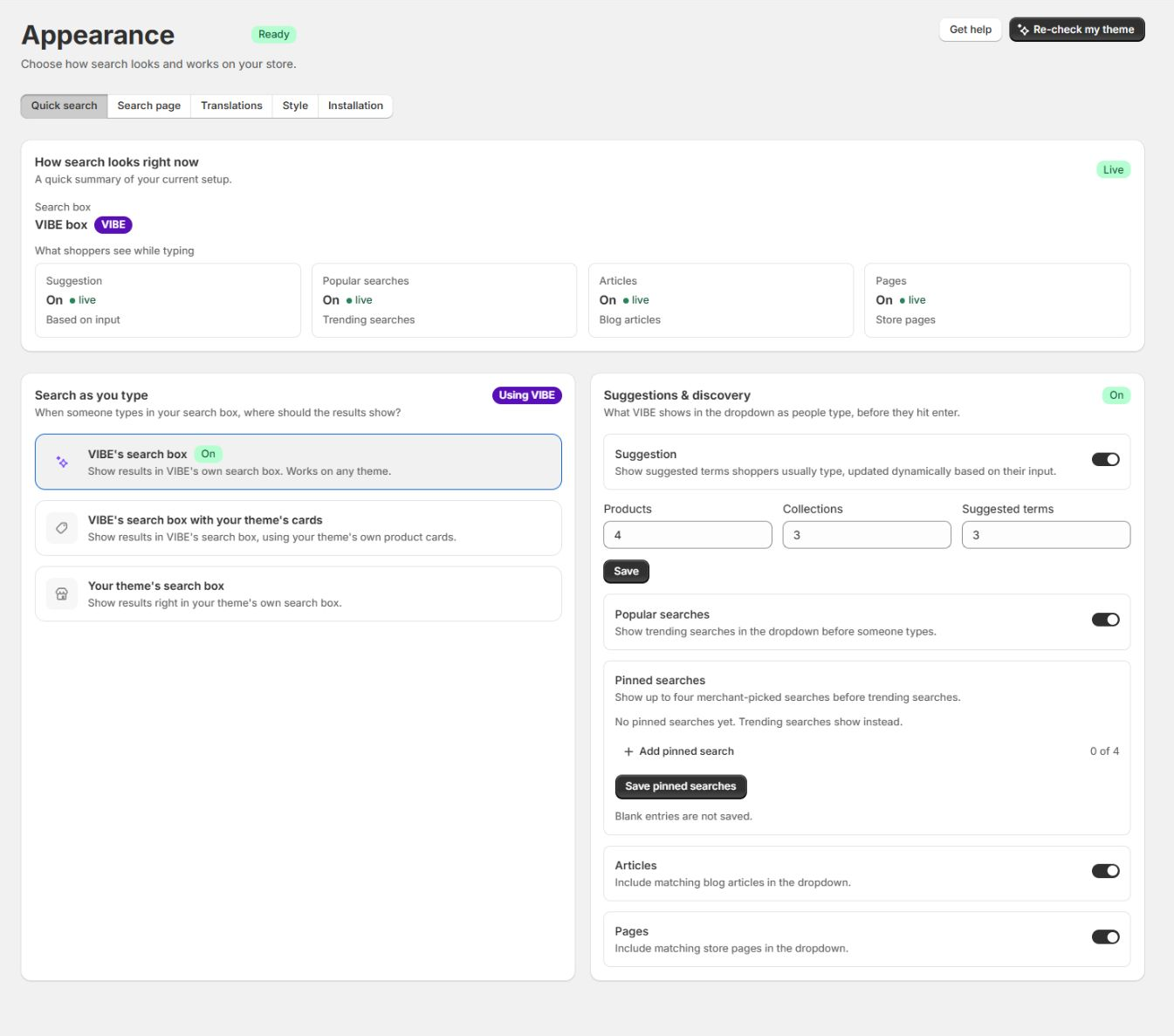
Quick search combines a choice of search box with a choice of card owner.
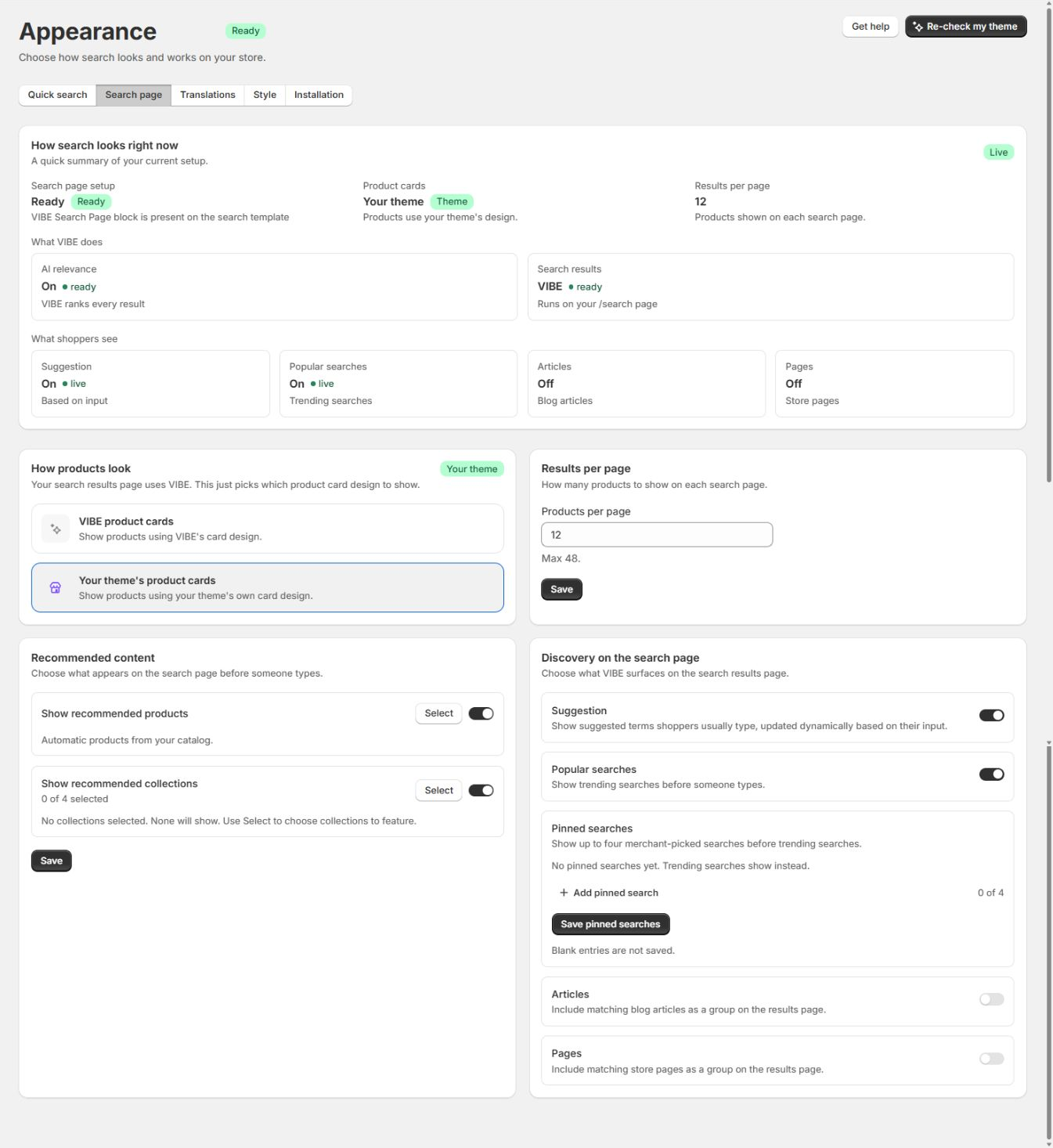
The full search page always uses the VIBE page surface, then selects VIBE or theme cards.
The short version
Section titled “The short version”| Choice | Search and ranking owner | Interface owner | Product-card owner | Best when |
|---|---|---|---|---|
| VIBE’s search box | VIBE | VIBE overlay | VIBE | You want the most portable setup and all VIBE discovery controls |
| VIBE’s search box with your theme’s cards | VIBE | VIBE overlay | Shopify theme | You want the complete VIBE interface with product tiles that match the storefront |
| Your theme’s search box | VIBE supplies ranked results | Shopify theme | Shopify theme | Preserving the theme’s predictive-search interaction is the priority |
| VIBE full search page with VIBE cards | VIBE | VIBE Search Page app block | VIBE | You want consistent behavior and VIBE styling on /search |
| VIBE full search page with theme cards | VIBE | VIBE Search Page app block | Shopify theme | You want VIBE filters and discovery with the theme’s product presentation |
The quick-search choice and the full-search-page card choice are independent. A store can use the theme’s search box for search as you type and VIBE cards on the full /search page, or use a VIBE overlay with theme cards and the same theme cards on the full page.
What a VIBE product card is
Section titled “What a VIBE product card is”A VIBE product card is HTML and styling owned by the VIBE code running on your store. VIBE builds it from your catalog data and the current search response.
VIBE controls:
- Product image and fallback image treatment.
- Product title, vendor line, price, compare-at price, and availability presentation supported by the card.
- Card spacing, radius, grid behavior, and VIBE color treatment.
- VIBE actions such as Similar and Save to Your Vibe when those features are enabled.
- Consistent responsive behavior inside VIBE’s overlay and search page.
Use VIBE cards when:
- The theme has not passed native-card analysis.
- You have just changed or published a theme.
- Some theme cards are missing or malformed.
- You want Appearance > Style settings to control the results.
- You need a stable fallback while a theme-specific issue is investigated.
VIBE cards do not mean that VIBE changes the result order. Card markup is a presentation layer applied after the search response is available.
What a native theme card is
Section titled “What a native theme card is”In this documentation, native card and theme card mean the product-card markup produced by your current Shopify theme.
This can preserve theme-specific presentation such as:
- Image ratios and hover images.
- Sale, sold-out, or custom badges.
- Color swatches and variant details.
- Theme price components.
- Vendor or subtitle treatment.
- Theme typography, spacing, and hover behavior.
- Markup added by compatible theme customizations.
Native does not mean that Shopify chooses the result order. It does not mean Shopify Search and Discovery replaces VIBE. It means the current theme owns the product-card markup and CSS.
The base card remains theme-owned, but VIBE can wrap it with result position, tracking, and any VIBE discovery actions your plan includes. This lets a theme card participate in VIBE search without turning it into a VIBE-designed card.
What VIBE analyzes
Section titled “What VIBE analyzes”Theme cards are not a universal component. Each theme can use different Liquid snippets, section structures, product variables, selectors, price elements, and predictive-search behavior.
During theme analysis, VIBE checks the selected theme for separate contracts:
- Main-search card contract: the product-card markup used by the full search section.
- Quick-search card contract: the markup used inside predictive search.
- Predictive-search surface contract: whether the theme’s own search box can accept VIBE-ranked results.
- Product, price, and compare-at selectors: the elements VIBE must identify inside rendered theme cards.
These contracts are related but independent. A theme can be ready for full-search cards but not ready for native predictive search, or ready for quick-search cards while its Search Page block is still missing.
The relevant Appearance options stay unavailable until the required contract is verified. Appearance > Installation shows which part is ready.
The three quick-search combinations
Section titled “The three quick-search combinations”1. VIBE’s search box with VIBE cards
Section titled “1. VIBE’s search box with VIBE cards”VIBE owns the overlay, suggestions, tabs, product grid, and cards.
Choose it for:
- The widest theme compatibility.
- Complete VIBE search, Explore, Similar, Your Vibe, and image-search controls.
- Styling through Appearance > Style.
- A dependable setup before native-card verification finishes.
2. VIBE’s search box with your theme’s cards
Section titled “2. VIBE’s search box with your theme’s cards”This is a hybrid mode.
Choose it when the full VIBE interaction is important but products should look like products elsewhere in the theme.
VIBE owns:
- Opening and closing the overlay.
- Suggested, popular, and pinned searches.
- Query handling and result order.
- Explore and visual-discovery controls.
- The surrounding grid, tabs, filters, and analytics.
The theme owns:
- The product markup inside each result tile.
- Theme card typography, swatches, badges, price markup, and card-specific CSS.
3. Your theme’s search box
Section titled “3. Your theme’s search box”The theme owns the predictive-search drawer or dropdown and its interaction. VIBE supplies the ranked product results through the verified predictive-search contract.
This preserves the theme’s search opening behavior, containers, tabs, card layout, and styling. VIBE-specific overlay controls are not inserted into the theme’s search box, so this option does not expose every feature available in the VIBE overlay.
Choose it when the theme’s own predictive-search interaction must remain intact.
The two full-search-page combinations
Section titled “The two full-search-page combinations”The dedicated /search experience uses the VIBE Search Page app block in both modes. Filters, sorting, result groups, Explore, pagination, and URL state remain VIBE-controlled.
VIBE Search Page with VIBE cards
Section titled “VIBE Search Page with VIBE cards”VIBE owns both the page experience and the product cards. Appearance > Style applies to the VIBE-rendered result cards.
VIBE Search Page with theme cards
Section titled “VIBE Search Page with theme cards”VIBE owns the page experience and result order. The analyzed theme owns each product card. This option requires a verified main-search card contract.
Changing the full-page card choice does not switch back to the theme’s original search-results section. It changes only the card design inside the VIBE Search Page block.
Current theme-rendering path
Section titled “Current theme-rendering path”VIBE uses a small bridge in your analyzed theme to request theme-rendered cards without replacing the theme’s existing product-card snippet.
After successful analysis and verification, VIBE can create or refresh:
sections/vibe-card.liquid: an app-named helper section that loops through Shopify search results and calls the detected theme card rendering code for main and supported quick-search surfaces.snippets/vibe-quick-card.liquid: an app-named helper used only when an inline predictive-search card must be normalized into a reusable quick-card snippet.
The helper files call the detected theme rendering path. VIBE does not overwrite the theme’s original card snippet. Re-running theme analysis can refresh the VIBE helper files so they match the current detected contract.
On the storefront, VIBE requests the helper section for the required product IDs, extracts the verified card root, associates each card with its product handle, and places the resulting theme HTML into the selected VIBE surface.
This is why theme analysis, card selectors, current theme identity, and fast-loading card readiness all matter.
For an unpublished theme, VIBE deliberately skips the shared prepared-card cache because Shopify’s public storefront renders the live theme. VIBE saves draft settings in a theme-specific widget-config metafield while leaving the published theme’s widget_config unchanged, and it does not verify the draft against the bare storefront. VIBE can still install the helper section in the selected draft, and draft theme previews render cards through Shopify’s Section Rendering API in the shopper’s preview browser. This keeps draft testing configurable and unpublished while preventing live-theme HTML from being stored under a draft theme ID.
Fallback behavior
Section titled “Fallback behavior”VIBE cards remain the safe presentation fallback.
On VIBE-rendered surfaces:
- VIBE requests or reads the theme-rendered card for each result.
- If valid theme HTML is available for every product in the current result batch, VIBE uses the theme cards.
- If any card is missing, cannot be matched to its product handle, or cannot be rendered safely, that whole batch uses VIBE cards instead.
- The result order remains the same.
This all-or-nothing fallback prevents a partial cache or rendering response from mixing two card designs, languages, or currencies in one result grid. A missing theme card never removes an otherwise valid product result; the batch simply uses the safe VIBE-card renderer.
If native-card readiness is missing for the entire surface, the Appearance option is disabled or VIBE keeps the safe VIBE-card mode active.
Which settings affect each card type
Section titled “Which settings affect each card type”| Setting or change | VIBE cards | Theme cards |
|---|---|---|
| Appearance > Style radius, spacing, colors, grid, and VIBE font choice | Applies | Does not restyle the theme card internals |
| Theme CSS and product-card Liquid | Usually does not define the card | Applies |
| VIBE query, filters, controls, and result rules | Affects which products appear and their order | Affects which products appear and their order |
| VIBE product-card action settings | Applies when the action is supported | Can be layered around the theme card when supported |
| Theme publish or card-markup edit | Usually no card change | Requires re-check and QA |
| Catalog update | Updates product data used by the card | Updates result data, but does not repair a broken theme selector |
How to choose
Section titled “How to choose”Choose VIBE cards when reliability, portability, and consistent VIBE styling matter most.
Choose VIBE’s search box with theme cards when you want all VIBE overlay behavior but need product cards to match the store.
Choose your theme’s search box when preserving the theme’s predictive-search interaction is more important than adding every VIBE overlay feature.
Choose theme cards on the full search page when the VIBE page behavior is correct and the only desired change is product presentation.
Do not use a card-mode change to diagnose ranking. First run the same query in Search Preview. If product order is wrong in Preview and on the storefront, investigate VIBE’s copy of your catalog, relevance, filters, controls, and result rules. If order is correct but cards are broken, investigate Appearance and the theme contract.
QA after enabling theme cards
Section titled “QA after enabling theme cards”Test every surface separately:
- In Appearance > Installation, select the exact draft or published theme you are testing.
- Confirm the required quick-search or main-search card status is ready.
- Re-analyze after changing the theme selection. Refresh prepared cards for the published theme; draft previews hydrate theme cards in the browser instead.
- Search an exact product title.
- Search a broad category with enough products to fill the grid.
- Check product links, image, title, price, compare-at price, badge, swatches, and hover behavior.
- Confirm prices use the storefront’s active market and currency on both quick search and
/search. - Test an unavailable or sale product.
- Test desktop and mobile.
- Test the VIBE overlay and full search page independently.
- If using the theme’s search box, test the theme’s predictive drawer separately.
- Confirm Similar and Save actions do not cover the card’s own controls.
Repeat this QA after:
- Publishing another theme.
- Updating the theme.
- Editing product-card Liquid or CSS.
- Adding an app that changes product-card markup.
- Changing price or badge markup.
Troubleshooting
Section titled “Troubleshooting”Products are correct, but cards look wrong
Section titled “Products are correct, but cards look wrong”The ranking path is probably healthy. Switch temporarily to VIBE cards. If the same products appear correctly, re-check the theme and inspect native-card readiness under Appearance > Installation.
VIBE Style changes do not affect theme cards
Section titled “VIBE Style changes do not affect theme cards”This is expected. VIBE Style controls VIBE-rendered card internals. Theme cards inherit their own theme markup and CSS.
Theme and VIBE cards appear together in one result grid
Section titled “Theme and VIBE cards appear together in one result grid”Current VIBE builds keep each result batch on one renderer. If a grid still mixes both card types, hard-refresh the page, confirm the latest storefront bundle is deployed, refresh prepared cards, and re-check the theme contract.
Quick-search theme cards work, but full-page theme cards are unavailable
Section titled “Quick-search theme cards work, but full-page theme cards are unavailable”Quick and main cards use separate verified contracts. Complete the main-search card check under Appearance > Installation.
Full-page theme cards work, but the theme’s own search box is unavailable
Section titled “Full-page theme cards work, but the theme’s own search box is unavailable”The main card contract can be ready while the predictive-search surface or quick-card contract is not. Use VIBE’s search box until the theme’s predictive-search analysis passes.
A new theme broke native cards
Section titled “A new theme broke native cards”Switch to VIBE cards, run Re-check my theme, refresh fast-loading cards when prompted, and complete storefront QA before turning theme cards back on.
See Appearance, Quick search and suggestions, Full search results page, and Catalog and theme change playbook.